Settings Overview
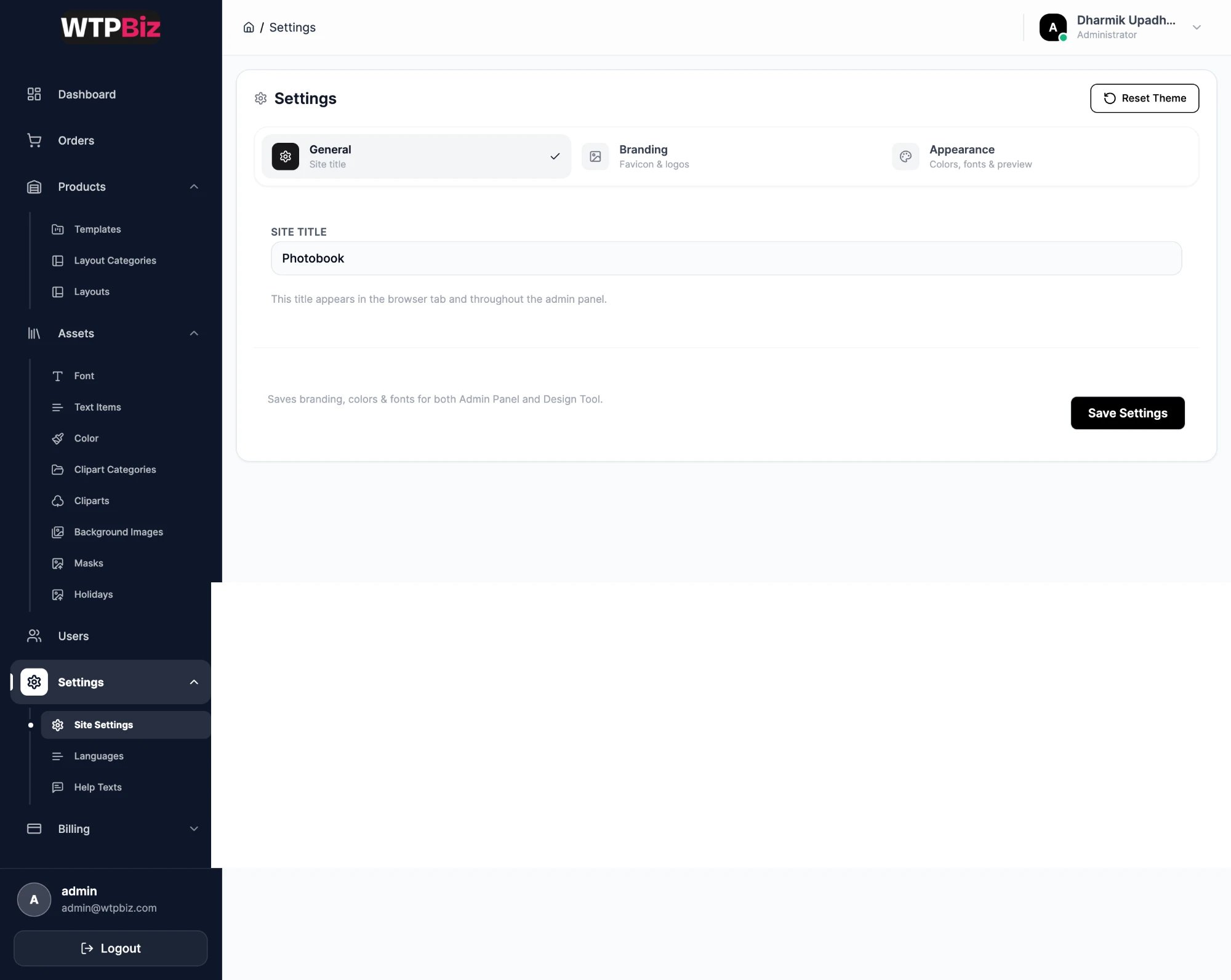
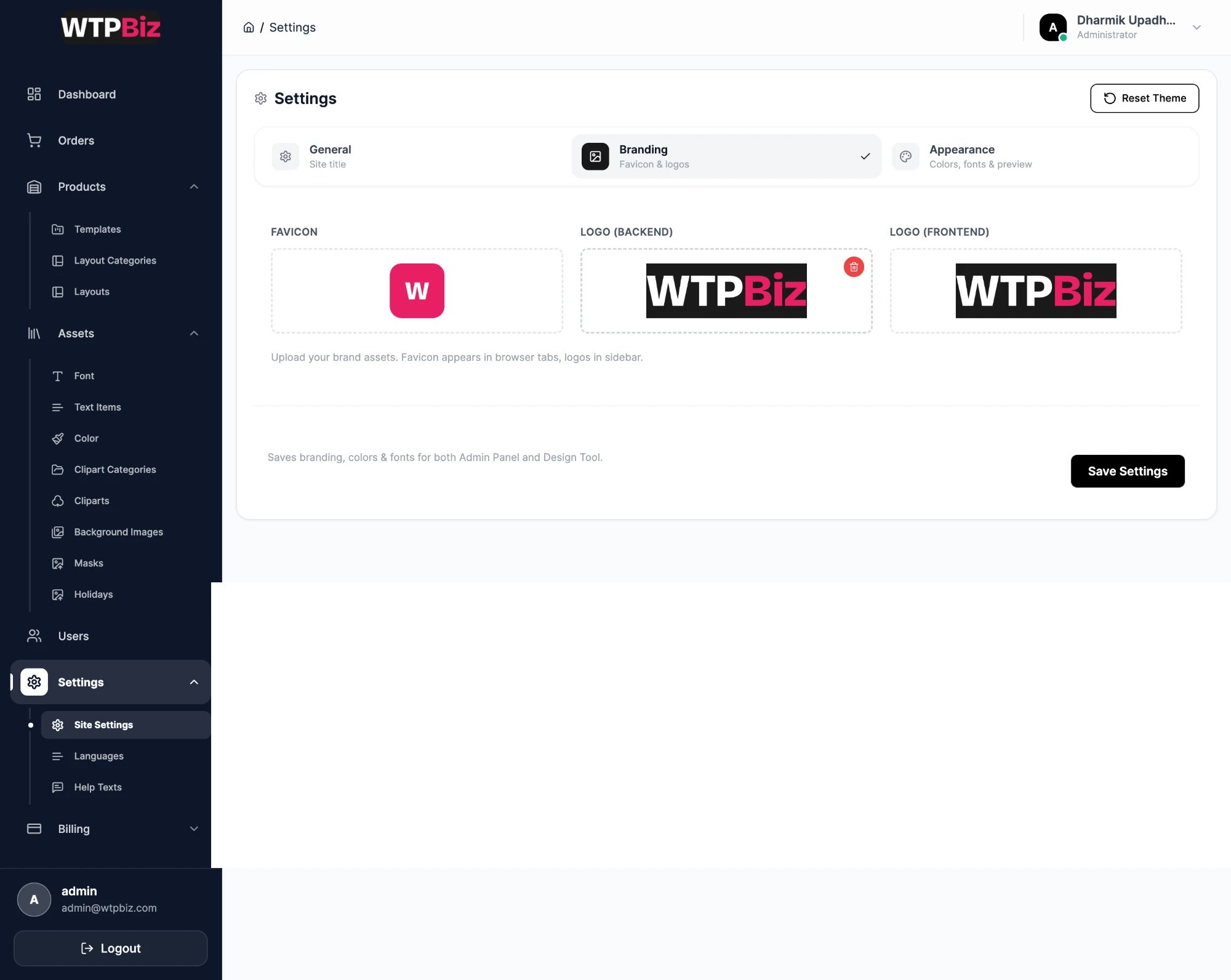
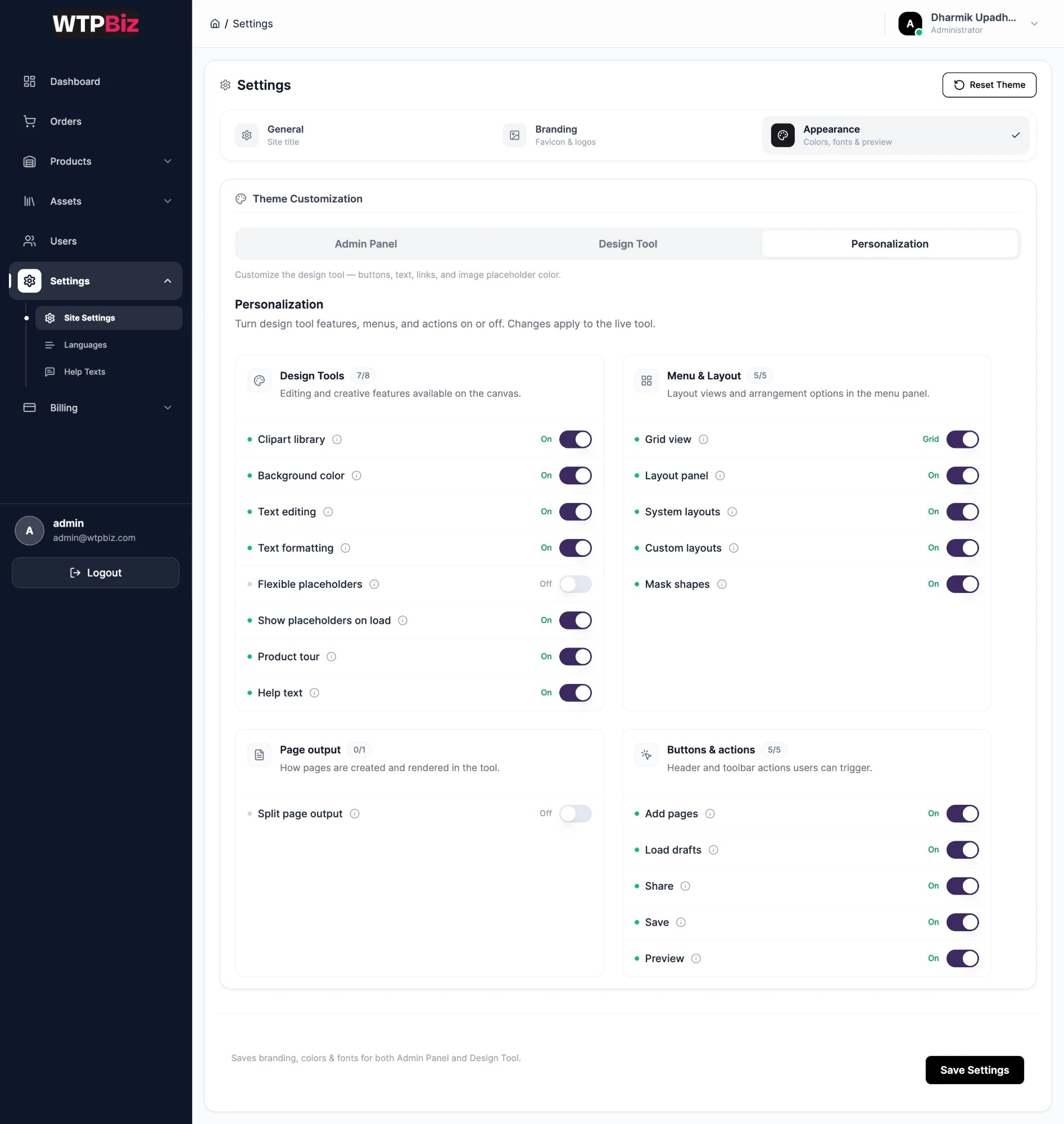
Settings has three pages: Site Settings, Languages and Help Texts. Site Settings has three tabs (General, Branding and Appearance) that share one Save Settings button. Reset Theme at the top right restores the default look.
General
Site Title is the name shown in the browser tab and around the admin panel. Set it to your store or brand name.
Branding
Click the bin on an image to remove it, then upload your own file.
Appearance: Admin Panel
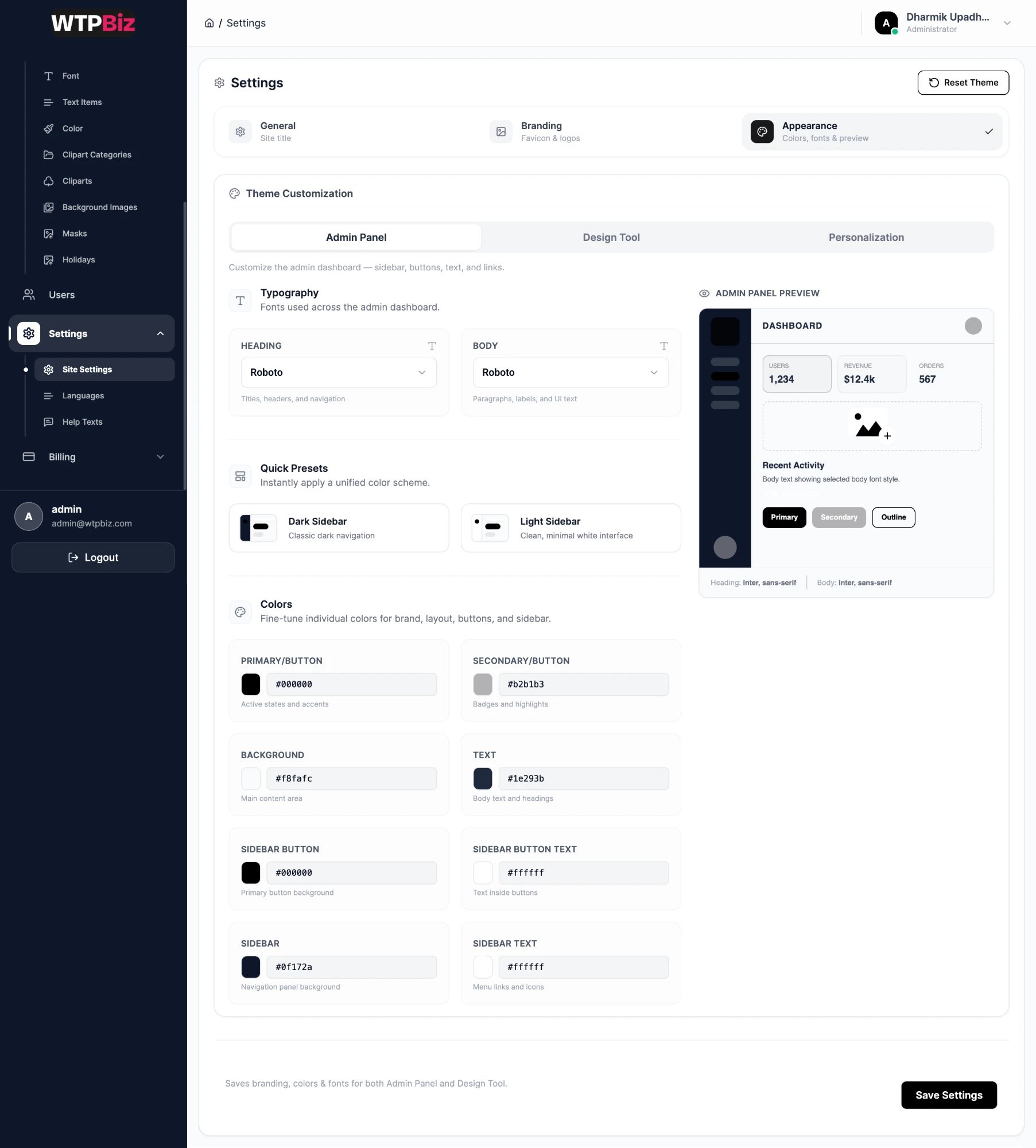
The Appearance tab has three sub-tabs: Admin Panel, Design Tool and Personalization. The Admin Panel theme is only seen by your staff.
- Typography — heading and body fonts.
- Quick Presets — one-click Dark Sidebar or Light Sidebar color schemes.
- Colors — primary/button, secondary, background, text, sidebar button, sidebar button text, sidebar and sidebar text.
- Admin Panel Preview — updates as you change fonts and colors.
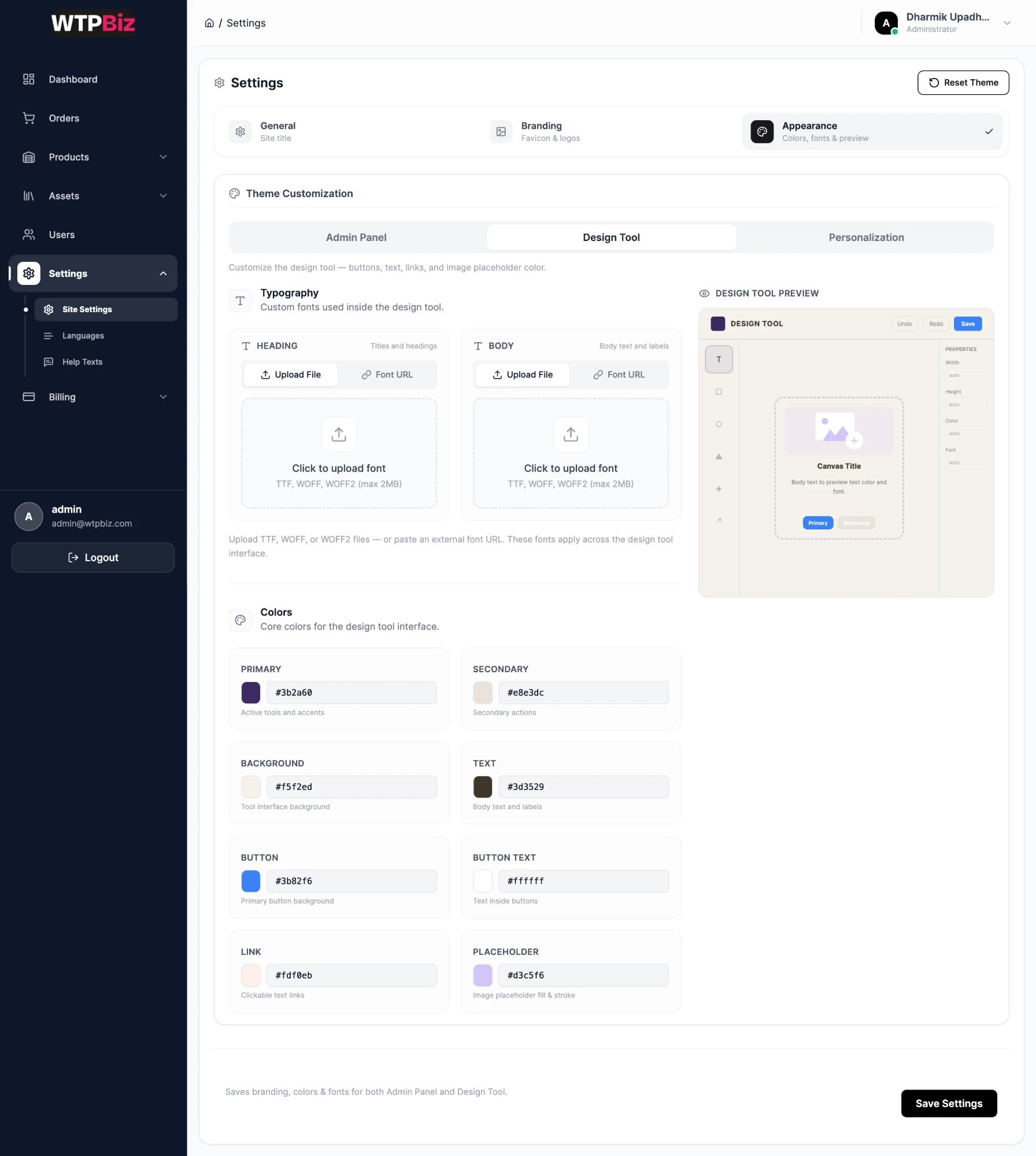
Styles the editor customers use on your storefront. Match it to your store theme so the editor feels part of your shop.
- Typography — heading and body fonts for the editor interface. Upload File (TTF, WOFF or WOFF2, max 2 MB) or paste a Font URL. These are separate from the Fonts library customers use in their designs.
- Colors — Primary, Secondary, Background, Text, Button, Button Text, Link and Placeholder (the fill of empty photo slots).
- Design Tool Preview — a mock editor that updates as you make changes.
Choose a link color with strong contrast against the background so links stay readable.
Appearance: Personalization
Switches that turn editor features on or off for customers. Each group shows how many switches are on. Hover the ⓘ icon for details. Changes apply after Save Settings.
Keep Save and Load drafts on so customers can finish their book later. Turn off features that don’t fit your product, for example Add pages on a fixed-page book. Check with your printer before changing Split page output.
Languages
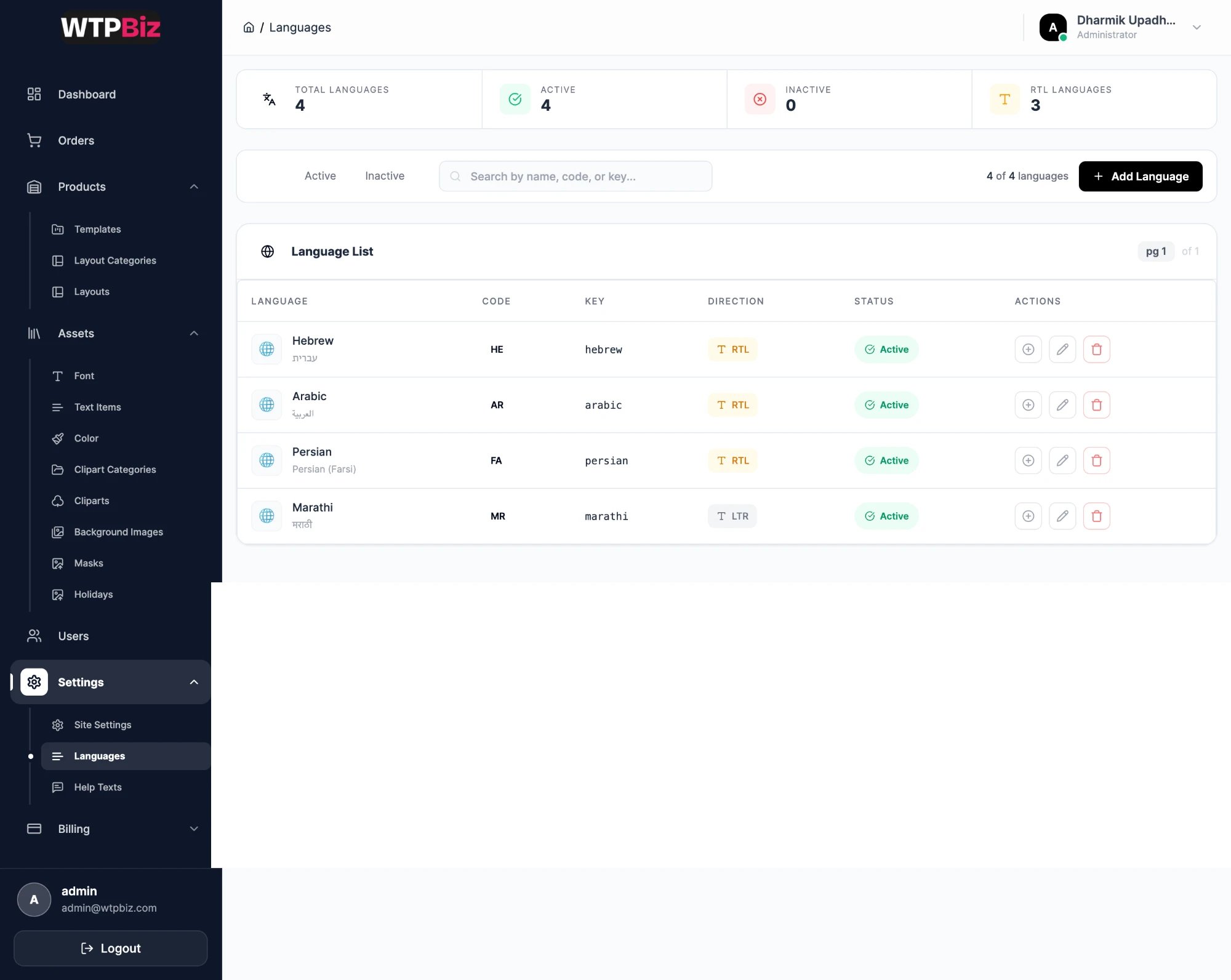
Go to Sidebar > Settings > Languages.
The Language List shows each language with its code, key, direction (RTL or LTR) and status. Right-to-left languages such as Arabic or Hebrew mirror the whole editor. Use the Active and Inactive tabs and search to filter. Click Add Language to add one.
Help Texts
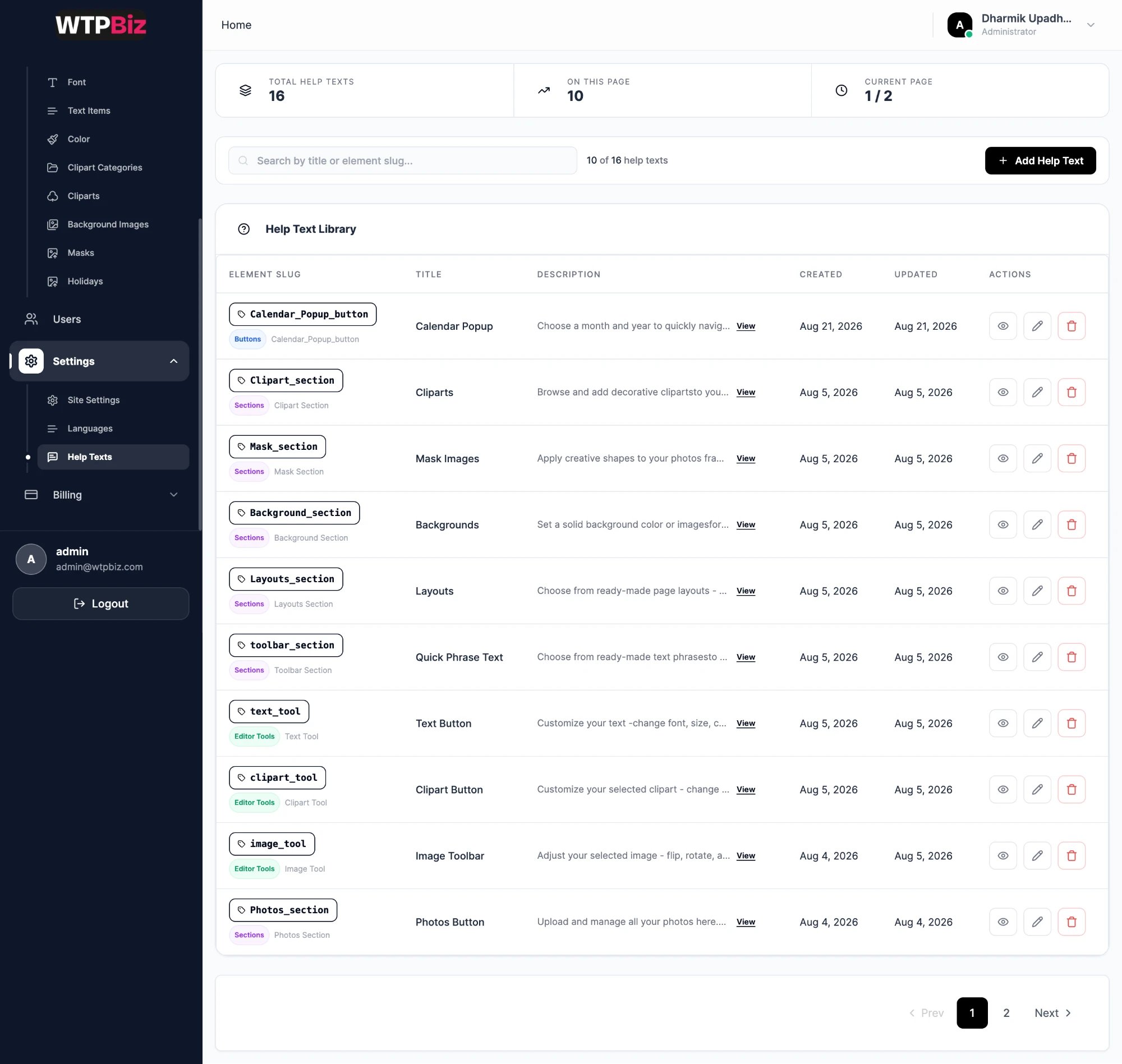
Go to Sidebar > Settings > Help Texts.
Help texts are the tooltips and hints customers see in the design tool. Each is tied to an editor element by its Element Slug and tagged as Buttons, Sections or Editor Tools. Edit the Title and Description to match your store’s tone of voice..png?fit=max&auto=format&n=A6eJvszAoL83-A7S&q=85&s=ab172e8360b4303be4b8af2487703d0c)