Assets Overview
Assets is the shared library the design editor draws from. Every asset page has the same layout: a summary strip, a search box, an Add button at the top right, and a table with edit (pencil) and delete (bin) on each row. Pages with images also have a view (eye) button.
Fill these libraries before building designs, so the artwork you and your customers need is ready in the editor.
Fonts
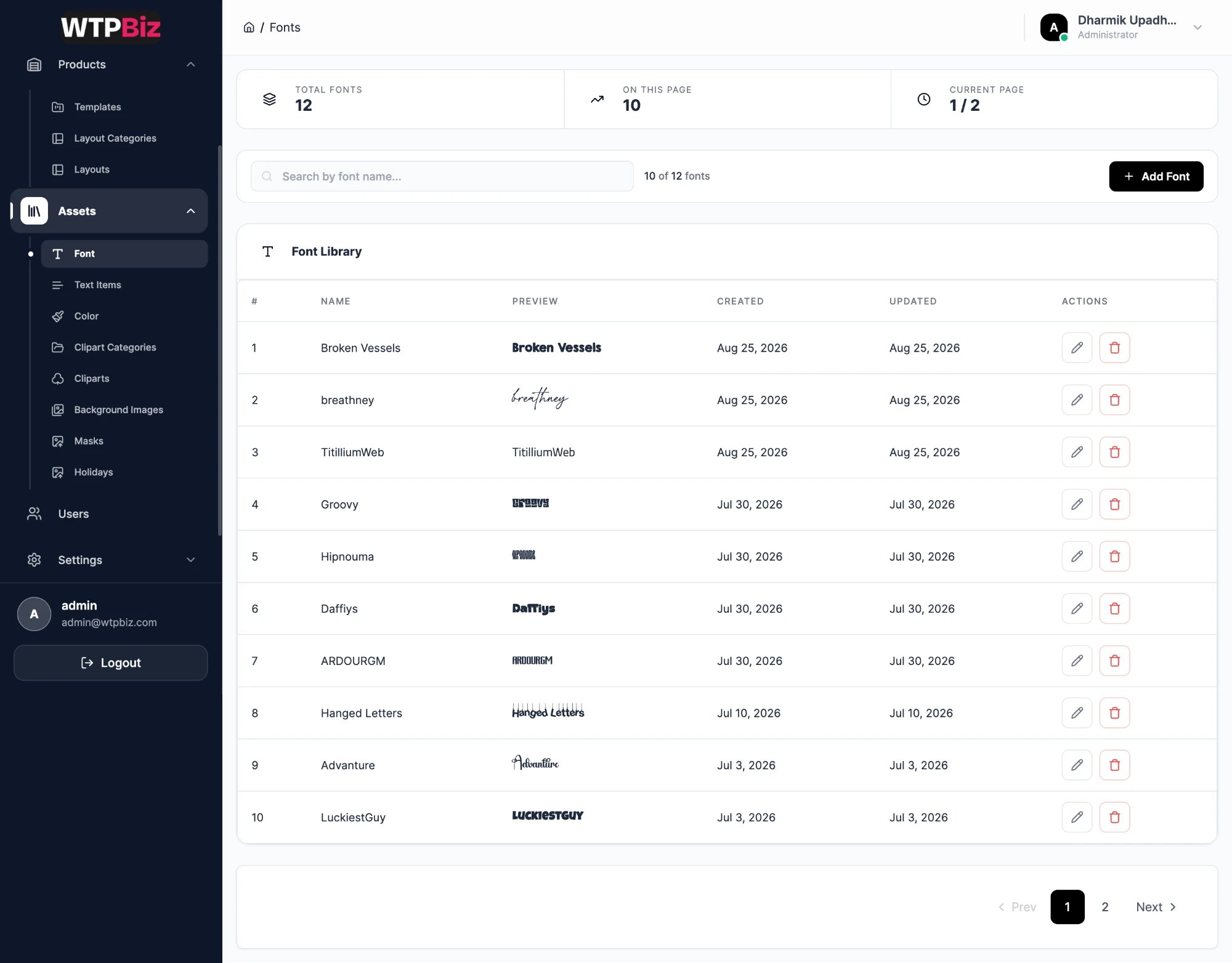
Go to Sidebar > Assets > Font.
The Font Library lists every typeface customers can choose in the editor, with a live preview. Click Add Font to upload a new font file.
Only upload fonts you are licensed to use for print and commercial products.
Text Items
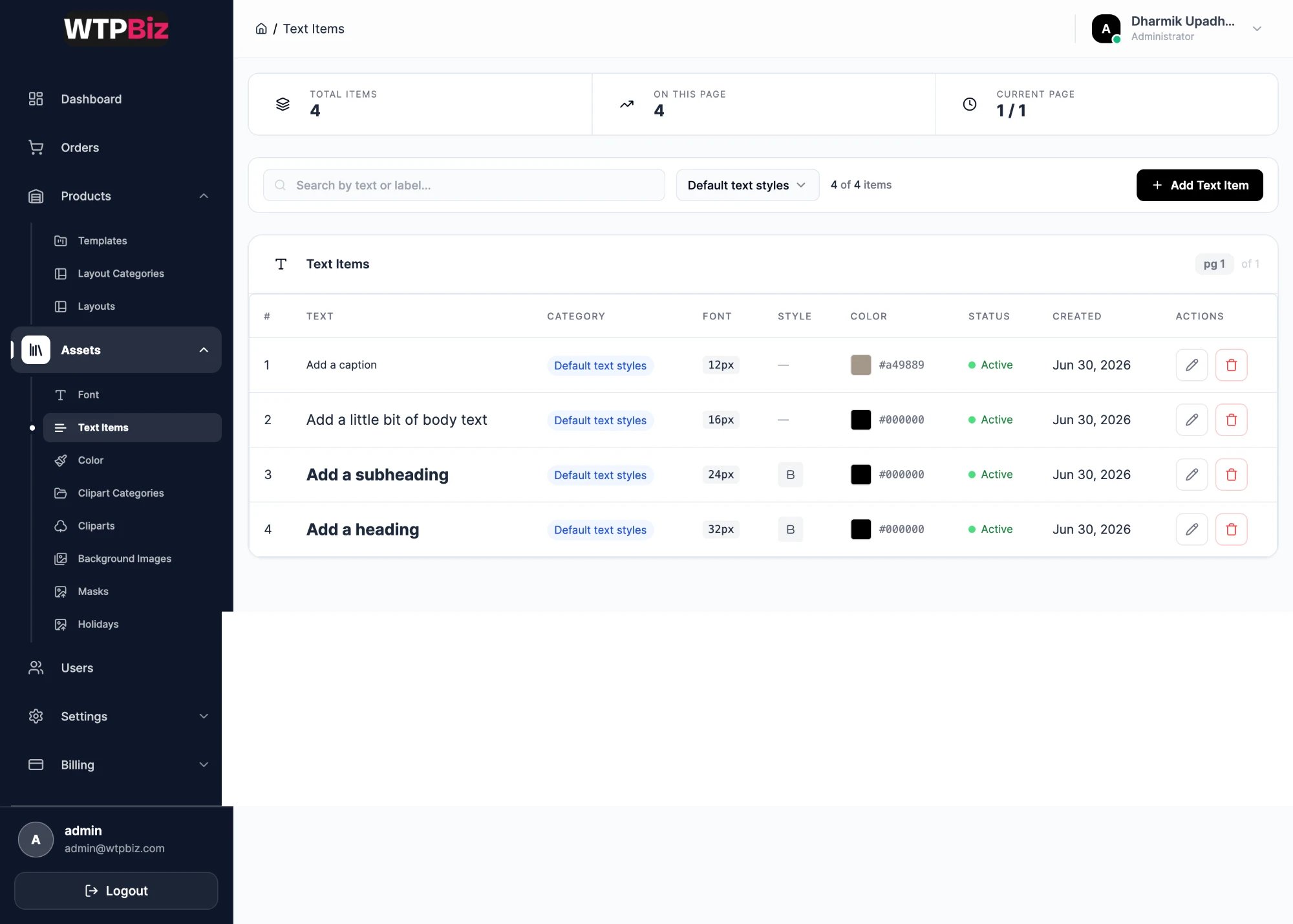
Go to Sidebar > Assets > Text Items.
Text items are ready-made text boxes customers drop onto a page, with font size, weight and color already set. The default set includes a caption, body text, a subheading and a heading. Each row shows text, category, font size, style, color, status and created date. Click Add Text Item to create a new preset.
Colors
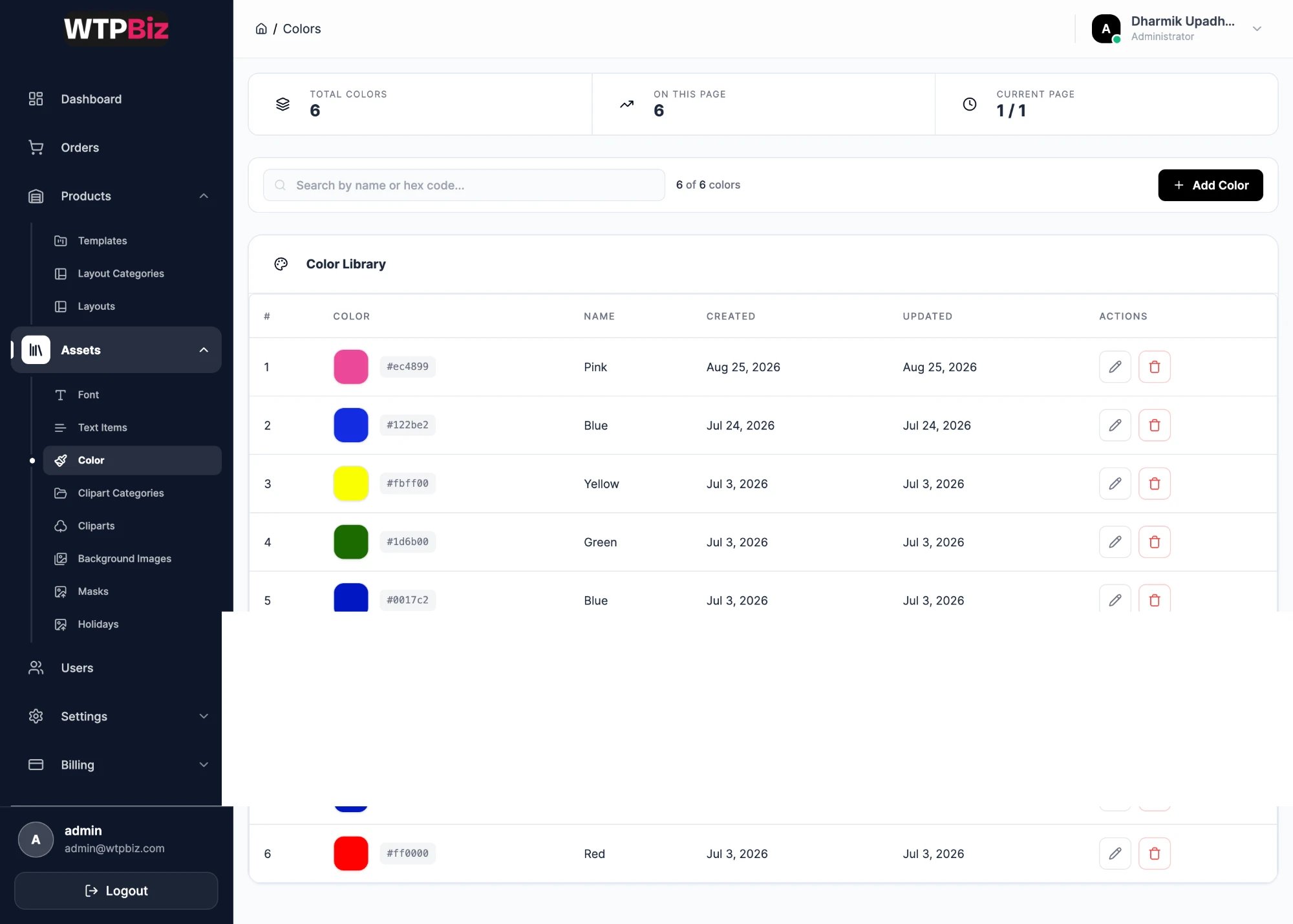
Go to Sidebar > Assets > Color.
The Color Library is the palette customers pick from for text and shapes. Each row has a swatch, hex code and name. Click Add Color and enter a name and hex value. Add your brand colors so customer designs stay on-brand.
Clipart Categories
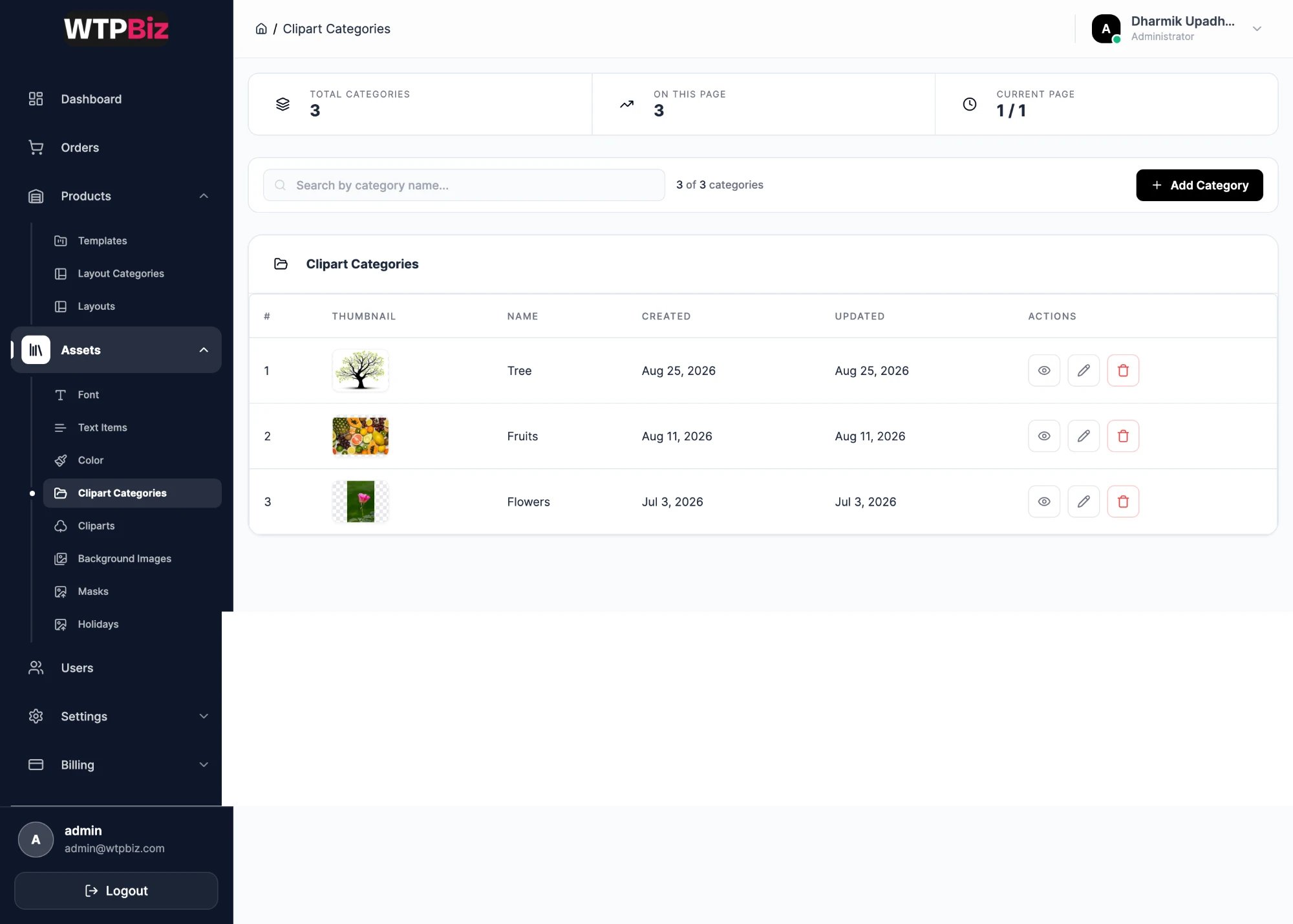
Go to Sidebar > Assets > Clipart Categories.
Categories group clipart in the editor, for example Tree, Fruits and Flowers. Create a category with Add Category before adding cliparts to it.
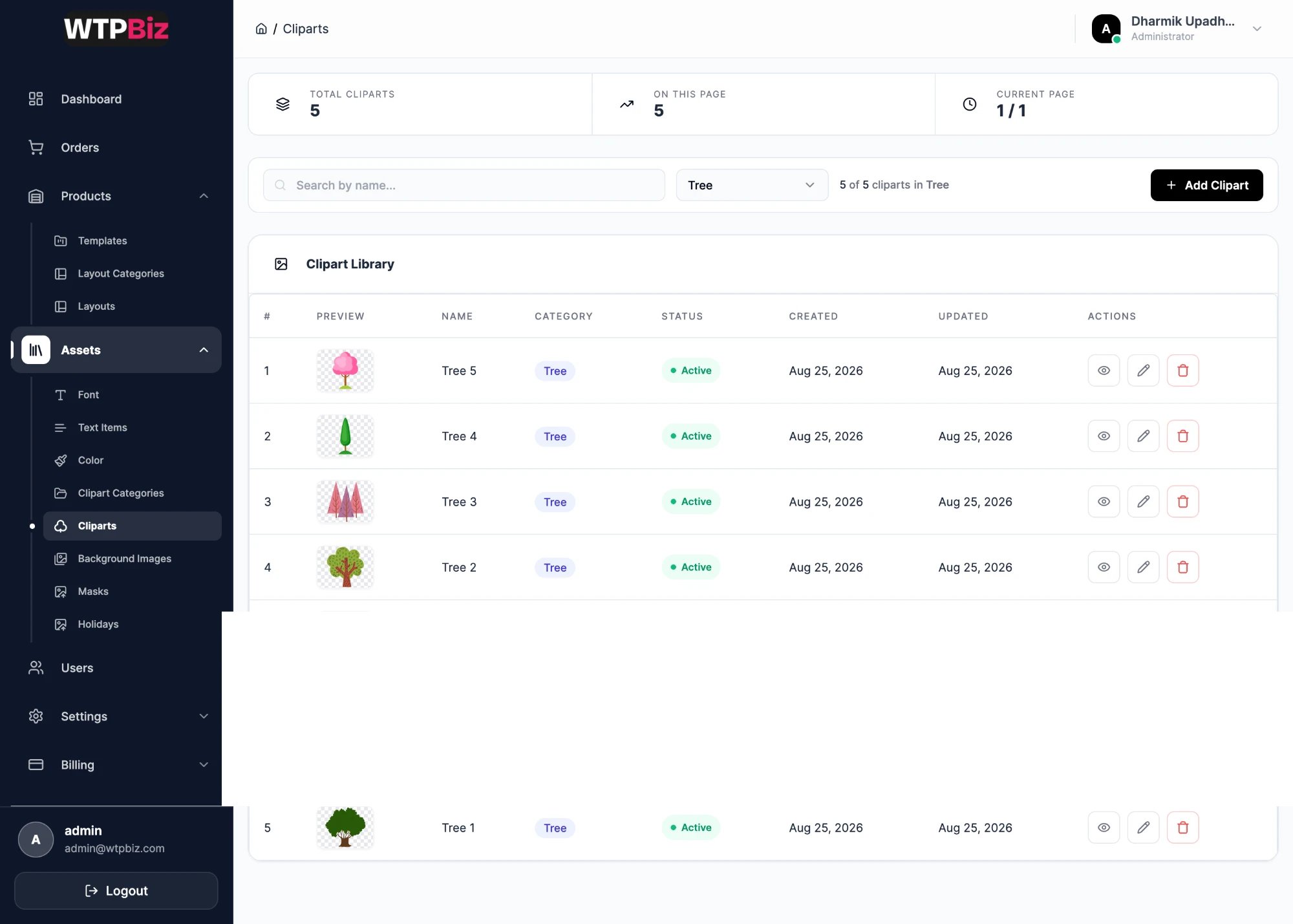
Cliparts
Go to Sidebar > Assets > Cliparts.
Cliparts are stickers and decorations customers place on pages. Use the category dropdown to show one category at a time. Click Add Clipart to upload an image and assign its category.
Transparent PNG files work best for cliparts.
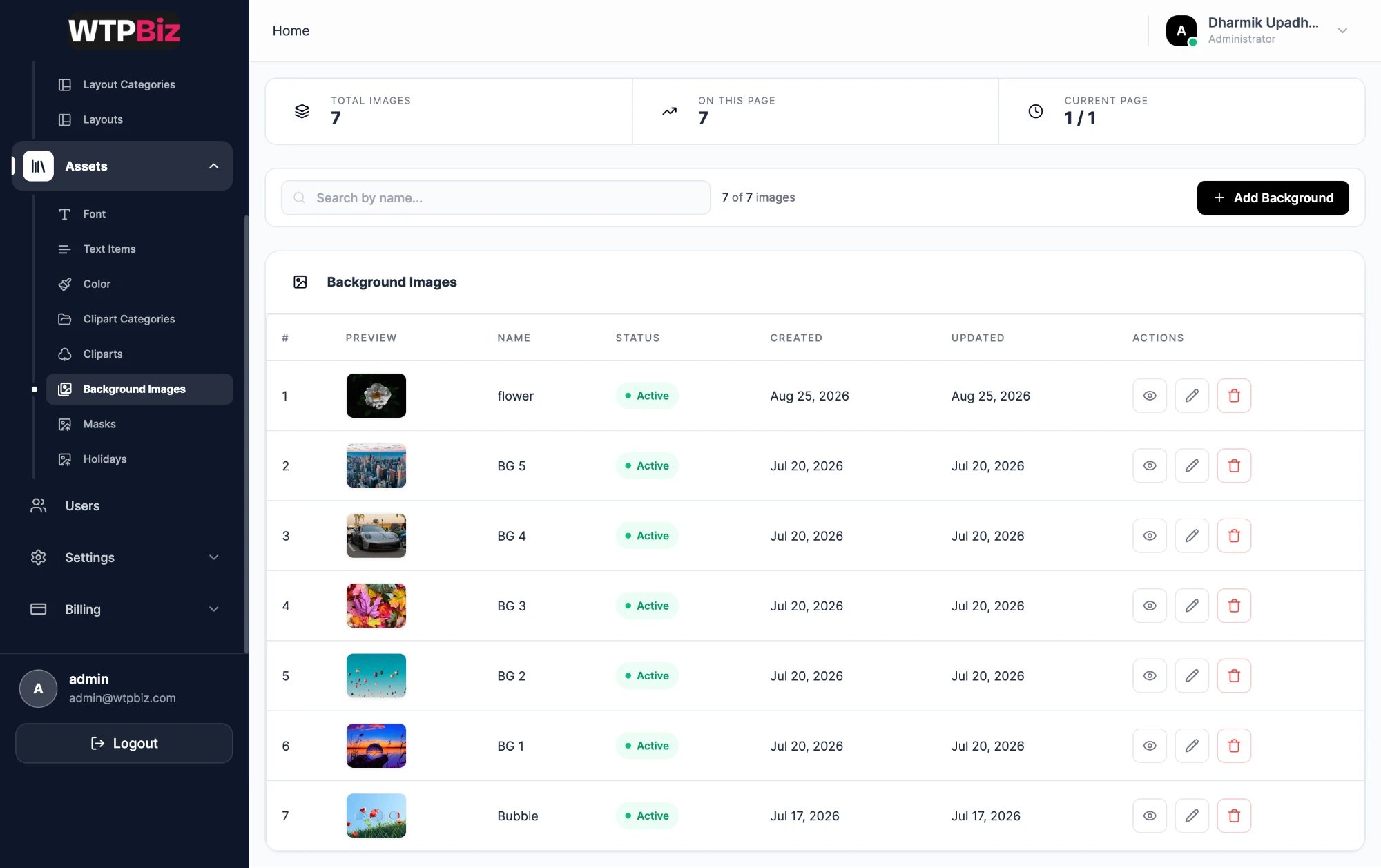
Background Images
Go to Sidebar > Assets > Background Images.
Full-page images customers can set behind a page. Click Add Background to upload a new one.
Upload backgrounds at print resolution (300 DPI at the page size). A background covers the whole page, so small files print blurry.
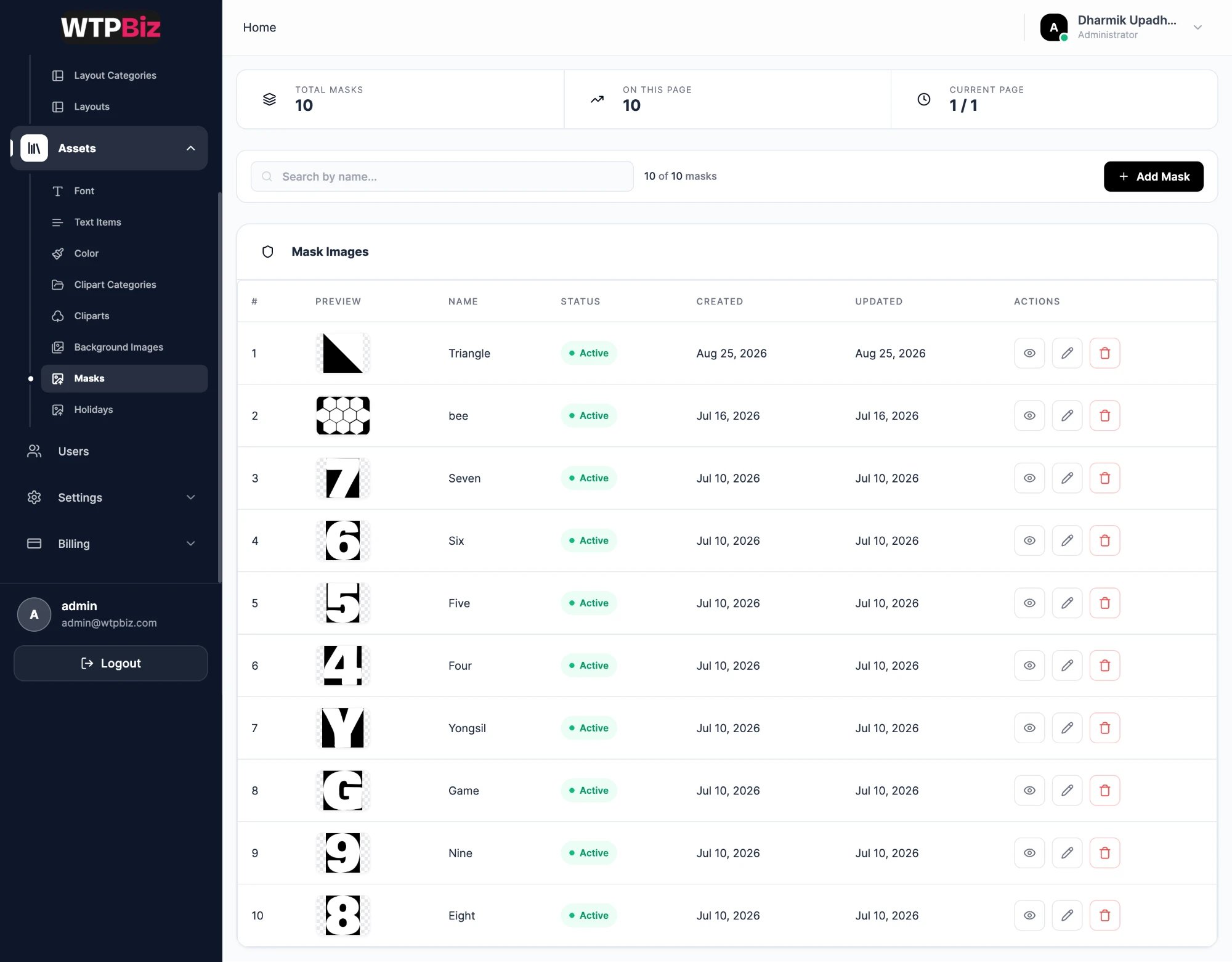
Masks
Go to Sidebar > Assets > Masks.
A mask is a shape a photo is clipped into. The black area shows the photo and the transparent area hides it, so customers can place a photo inside a number, letter or pattern. Click Add Mask and upload a black shape on a transparent background.
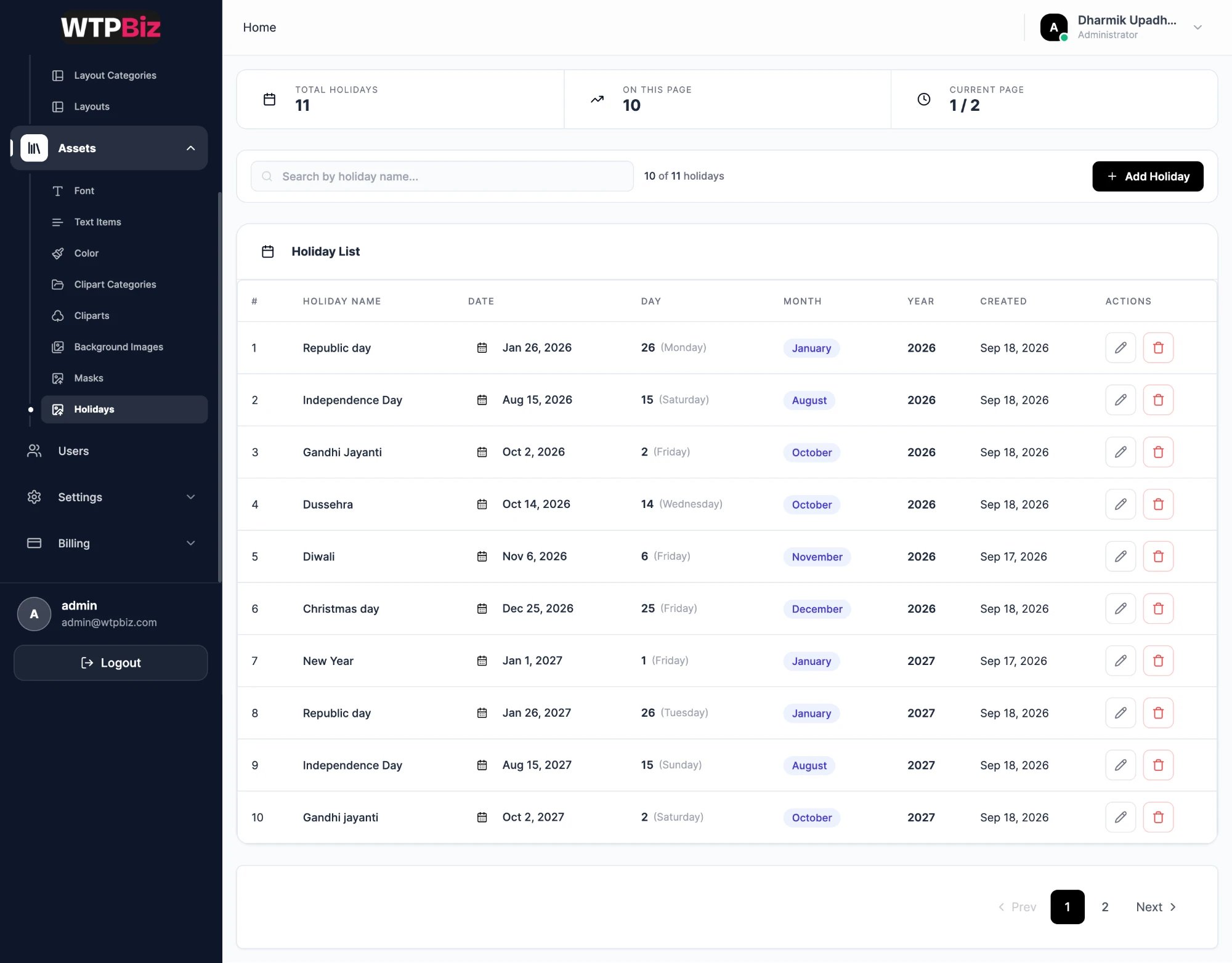
Holidays
Go to Sidebar > Assets > Holidays.
Holidays are marked in red on calendar grids. Each row shows the name, date, day, month and year. Click Add Holiday to add one.
Holidays are set per year. Before selling calendars for a year, add every holiday for that year and your market. A 2027 calendar only shows holidays entered for 2027.
.png?fit=max&auto=format&n=A6eJvszAoL83-A7S&q=85&s=ab172e8360b4303be4b8af2487703d0c)