.png?fit=max&auto=format&n=A6eJvszAoL83-A7S&q=85&s=ab172e8360b4303be4b8af2487703d0c)
Colors
Go to Colors & Fonts > Colors.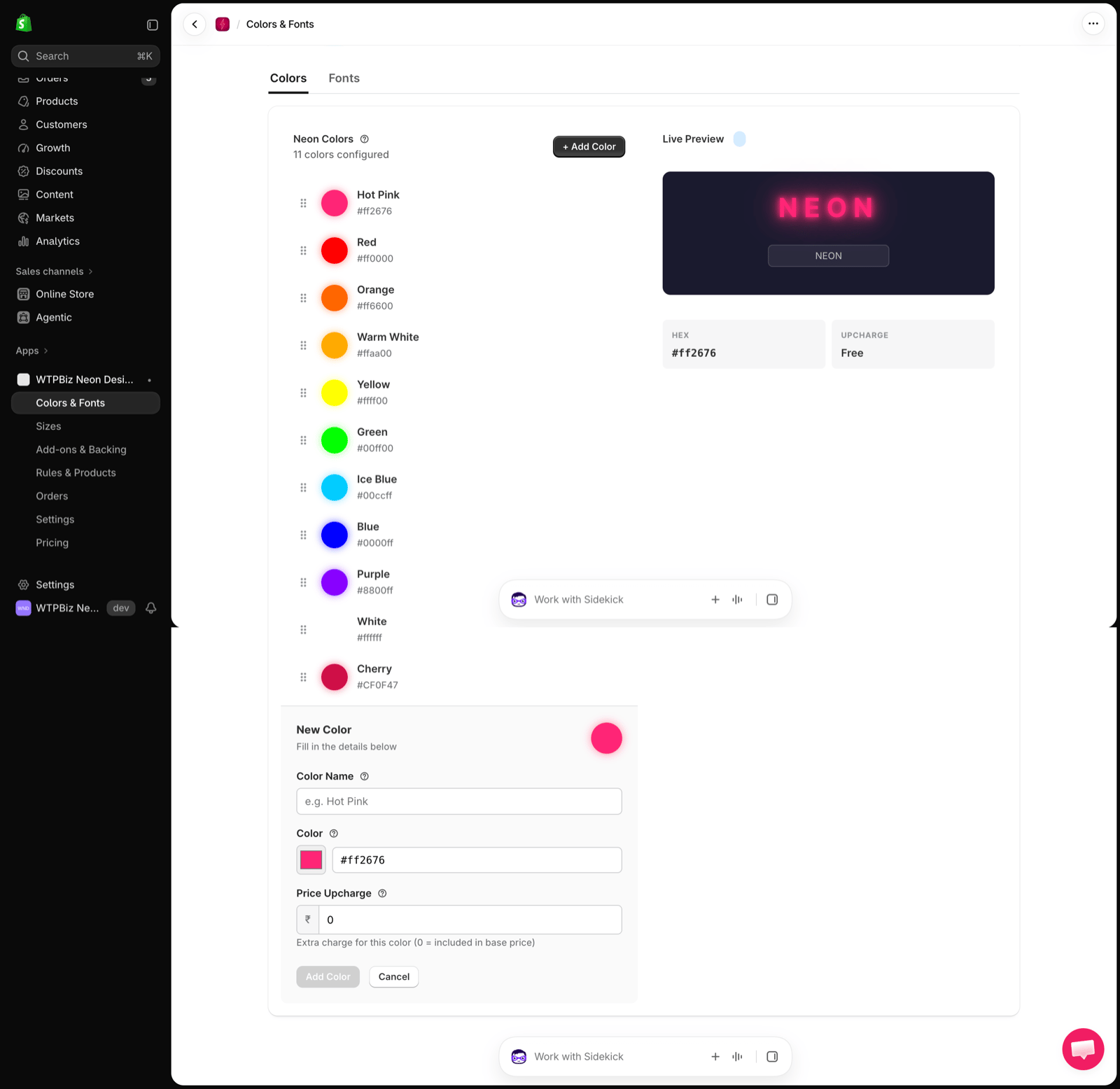
- Live Preview — shows the selected color as a glowing neon sign, with its HEX code and UPCHARGE.
Add a Color
- Click + Add Color.
- Enter a Color Name (e.g., Hot Pink).
- Pick the Color or type its hex code (e.g.,
#ff2676). - Set a Price Upcharge. Use
0to include the color in the base price. - Click Add Color.
Fonts
Go to Colors & Fonts > Fonts.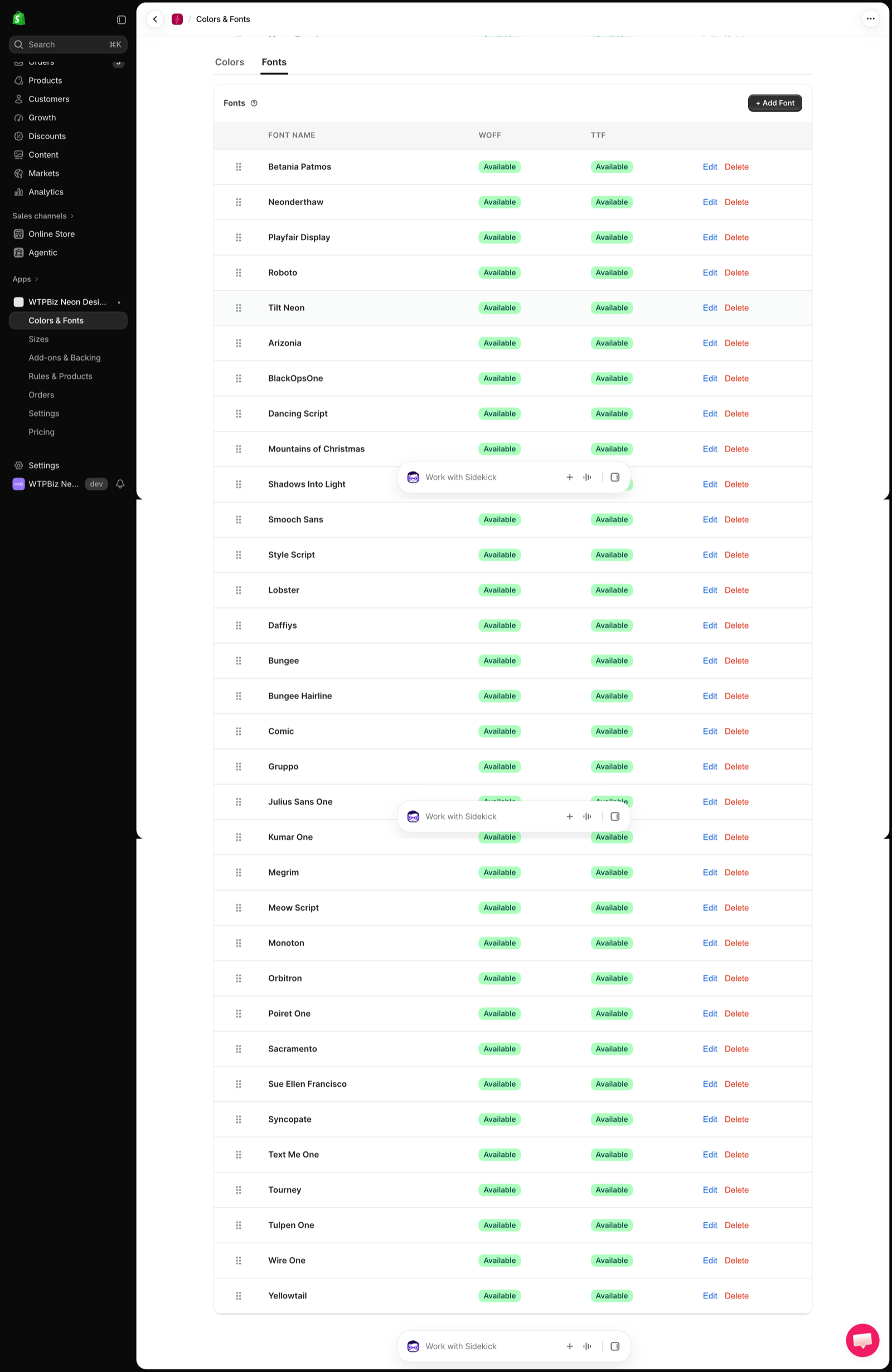
Add a Font
- Click + Add Font.
- Enter the font name and upload the font files (WOFF and TTF).
- Save.
The number of custom fonts you can upload depends on your plan. See Pricing.