Library Overview

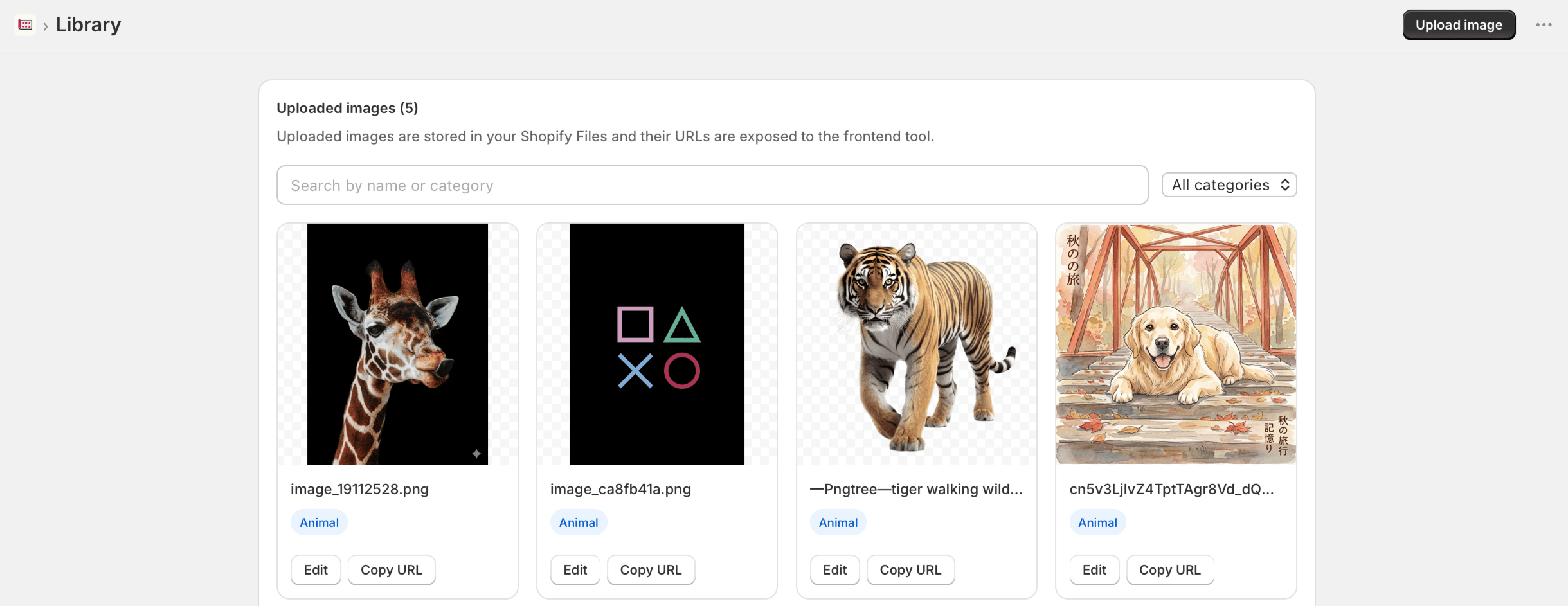
The Library page is where you manage the image collection available to customers inside the SheetSnap editor. Uploaded images are stored in your Shopify Files and their URLs are exposed to the frontend design tool so customers can place them on their gang sheets. Ss Library

Uploaded Images

The library displays all images you’ve uploaded, organized by category. Each image card shows:
  • A thumbnail preview
  • The image filename
  • A category label (e.g., Animal, Pattern)
  • Edit and Copy URL buttons

Uploading Images

To add images to the library:
  1. Click Upload image in the top-right corner.
  2. Select one or more image files from your computer. Supported formats: PNG, SVG, JPG, WEBP.
  3. Assign a category when prompted to keep your library organized.
  4. The image will be uploaded to Shopify Files and appear in the library grid.
Once uploaded, the image is immediately available inside the SheetSnap editor for customers to use.

Editing an Image

Click Edit on any image card to:
  • Rename the image
  • Change its category
  • Replace the image file

Copying the Image URL

Click Copy URL to copy the Shopify-hosted CDN URL for any image. You can use this URL in product descriptions, theme code, or other apps.

Filtering by Category

Use the All categories dropdown in the search bar to filter the library by category. This is useful when you have a large collection of images. You can also search images by name using the search field.
Organize your images into meaningful categories (e.g., Animals, Patterns, Holidays) so customers can browse and find artwork quickly inside the editor.