.png?fit=max&auto=format&n=A6eJvszAoL83-A7S&q=85&s=ab172e8360b4303be4b8af2487703d0c)
Dashboard Overview
The SheetSnap Dashboard is the first page you see after installing the app. It gives you a quick view of your setup progress, active subscription plan, and links to common questions.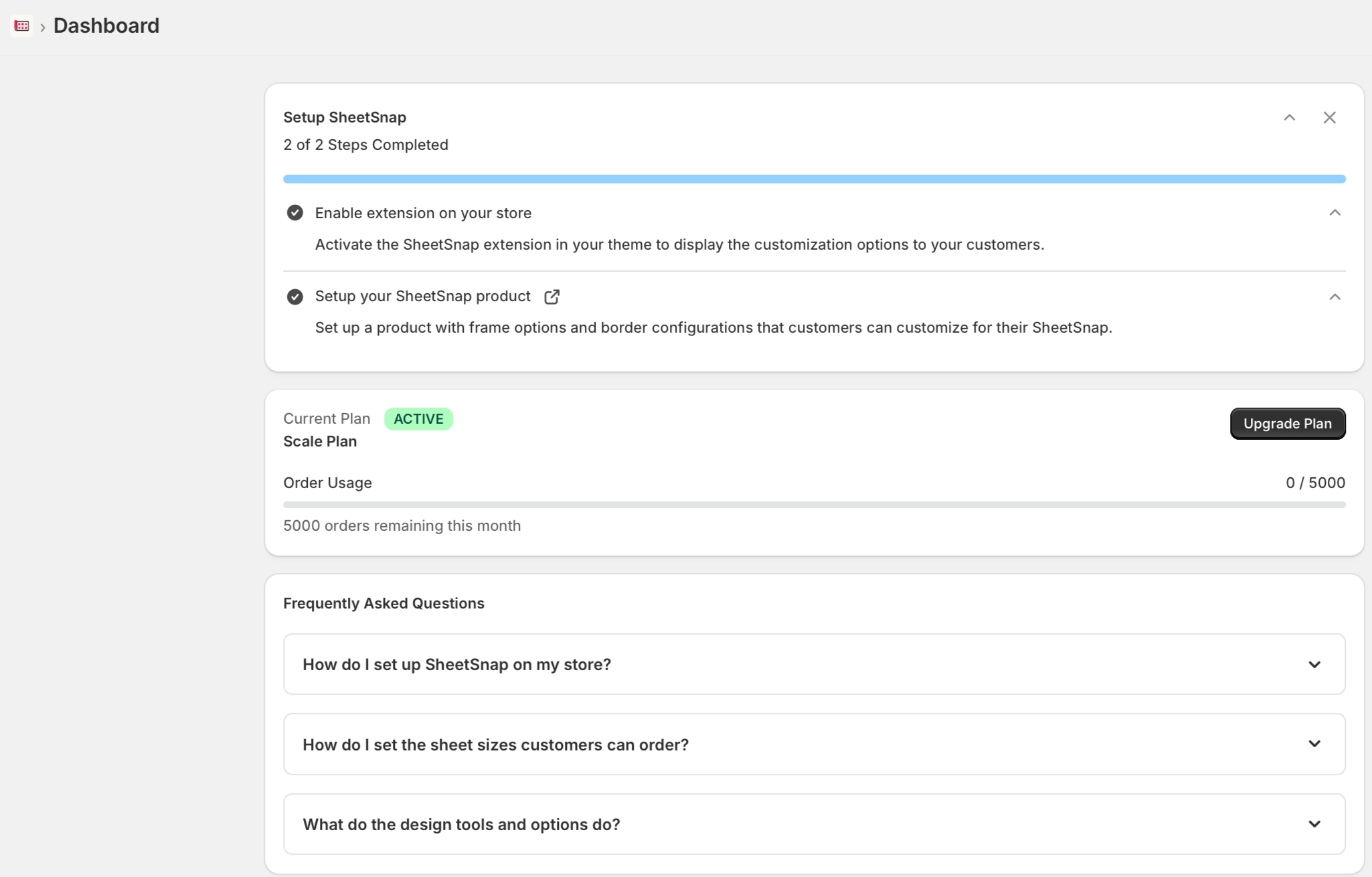
Setup Progress
The Setup SheetSnap card at the top of the dashboard tracks your onboarding steps. SheetSnap has two required setup tasks:- Enable extension on your store — Activate the SheetSnap extension inside your Shopify theme so the customization builder appears on your product pages.
- Setup your SheetSnap product — Configure a product with the sheet sizes, border options, and output settings your customers will use.
You can click the external link icon next to “Setup your SheetSnap product” to jump directly to the product configuration page.
Current Plan
Below the setup card, the Current Plan section shows:- Your active plan name (e.g., Scale Plan)
- Plan status badge (ACTIVE)
- Order Usage — a progress bar showing how many orders you’ve used out of your monthly limit (e.g., 0 / 5000)
- Remaining orders this month
Frequently Asked Questions
The dashboard includes a built-in FAQ section covering the most common setup questions:- How do I set up SheetSnap on my store?
- How do I set the sheet sizes customers can order?
- What do the design tools and options do?