.png?fit=max&auto=format&n=A6eJvszAoL83-A7S&q=85&s=ab172e8360b4303be4b8af2487703d0c)
Create a New Product in Shopify
Each gallery wall layout is sold as a separate Shopify product. Set up the product in Shopify first, then configure it inside the app.- In your Shopify admin, go to Products > Add product.
- Enter the product Name (e.g.,
5 Frame Gallery Wall,2 Frame Set). - Add product Media (cover image representing the layout).
- Under Variants, add a variant option named
Frameand create values for each frame style you offer (e.g., Black, White, Oak). Set a price for each. - Under Theme template (in the product settings), select the Gallery Wall template created in the Integration step.
- Click Save.
Each frame variant value (Black, White, Oak) will later be mapped to a thumbnail and frame overlay image inside the app.
Add the Product to the App
After creating the Shopify product, add it to the app to configure its gallery layout, frame styles, and border options.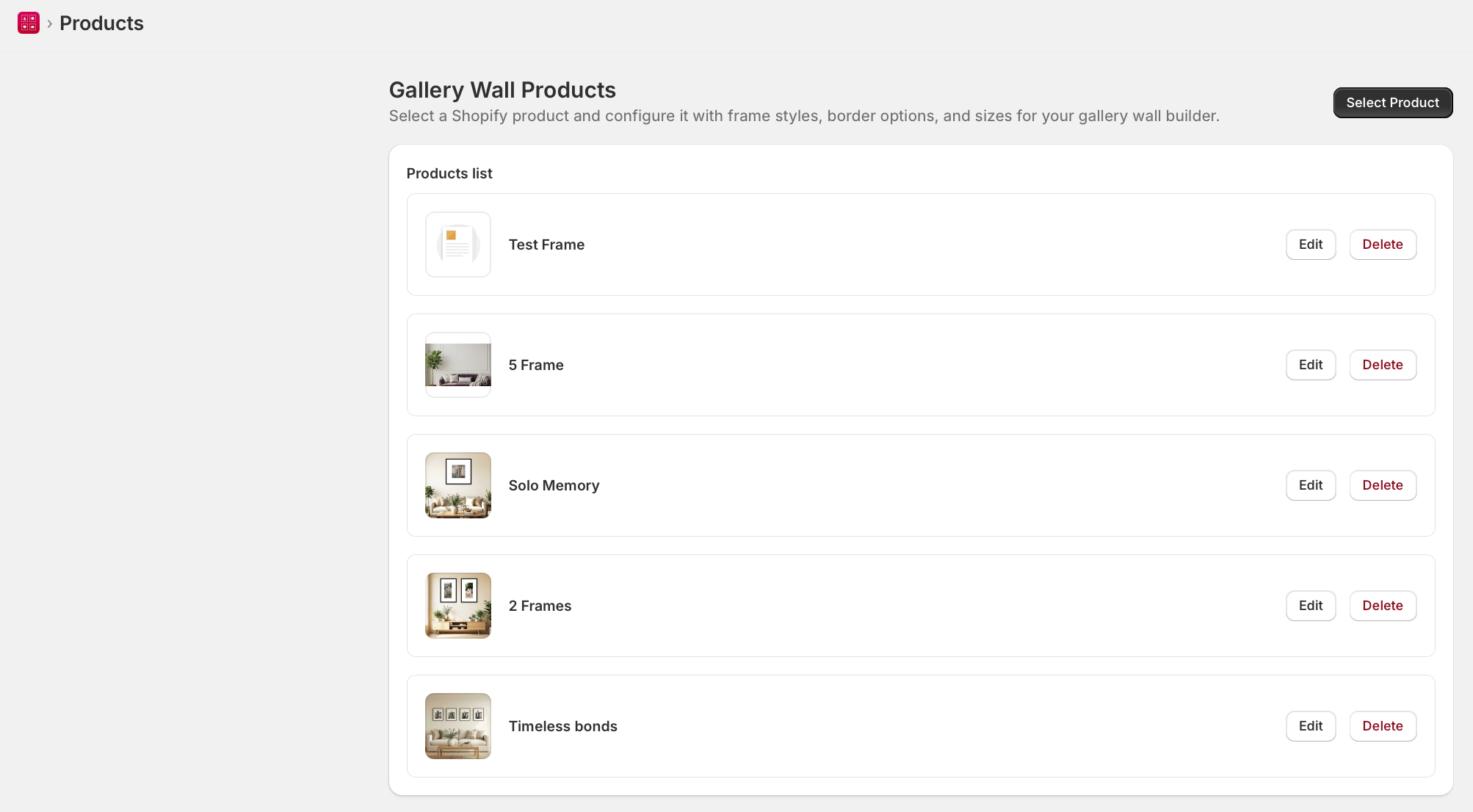
- Go to WTPBiz Gallery Wall > Products.
- Click Select Product.
- Search for and select the Shopify product you created. It will appear in the Products list.
- Click Edit to configure the product’s gallery layout.
Configure Gallery Wall Layout
Inside each product’s configuration, set the dimensions and grid layout of the gallery wall frames.- Enter Frame Width (e.g.,
20for a 20cm wide frame). - Enter Frame Height (e.g.,
30for a 20x30cm frame). - Enter Rows (e.g.,
1for a single-row gallery). - Enter Columns (e.g.,
3for 3 frames per row). - Enter Gap (e.g.,
2for 2cm between frames). - Click Save.
Example: Rows=1, Columns=5, Width=20, Height=30, Gap=2 creates a 5-frame horizontal gallery where each frame is 20x30cm with 2cm gaps.
Setup Frame Variants
Each frame variant (e.g., Black, White, Oak) needs a thumbnail image shown in the selector and an overlay image placed on top of customer photos.- In the product configuration, scroll to the Frame Variants section.
- For each variant, upload:
- Thumbnail – A small square image shown in the frame style picker (e.g., a corner photo of the frame).
- Frame Image – A transparent PNG image that overlays on the customer’s photos. The center area must be cut out. Square format preferred.
- Repeat for all frame variant values (Black, White, Oak, etc.).
- Click Save.
Sample frame overlay PNG images are available from the WTPBiz resources page. Frame overlay images must have a transparent center so photos show through.Add Border Options
Border options define the mat spacing between the photo edge and the frame border. Customers select a border option when customizing their gallery.- In the product configuration, scroll to the Border Options section.
- Click Add Border Option.
- For each border option, fill in:
- Title – Name shown to customers (e.g., Small, Medium, Large, 3 CM, 5 CM).
- Thumbnail – A small square image illustrating the border size.
- Value – The actual border size in your chosen unit (e.g.,
3means 3cm border around the photo inside the frame).
- Add as many border options as needed (e.g., No Border, Small, Medium, Large).
- Click Save.
Border values are entered in the unit selected in Settings (cm or inches). The value represents the space added around the photo inside the frame edge. - Value – The actual border size in your chosen unit (e.g.,
- Thumbnail – A small square image illustrating the border size.
- Title – Name shown to customers (e.g., Small, Medium, Large, 3 CM, 5 CM).
- Thumbnail – A small square image shown in the frame style picker (e.g., a corner photo of the frame).