> ## Documentation Index
> Fetch the complete documentation index at: https://help.wtpbiz.com/llms.txt
> Use this file to discover all available pages before exploring further.
# Settings
> Customize the SheetSnap editor appearance — color palette, image DPI, logo, and typography.
## Settings Overview
The Settings page lets you control the look and feel of the customer-facing SheetSnap builder. Changes here apply globally across all your SheetSnap products.
## Color Palette
The **Color Palette** section lets you define the brand colors used in the SheetSnap editor — including buttons, text, links, and background colors. A **Live Preview** panel on the right shows how your changes look in real time.
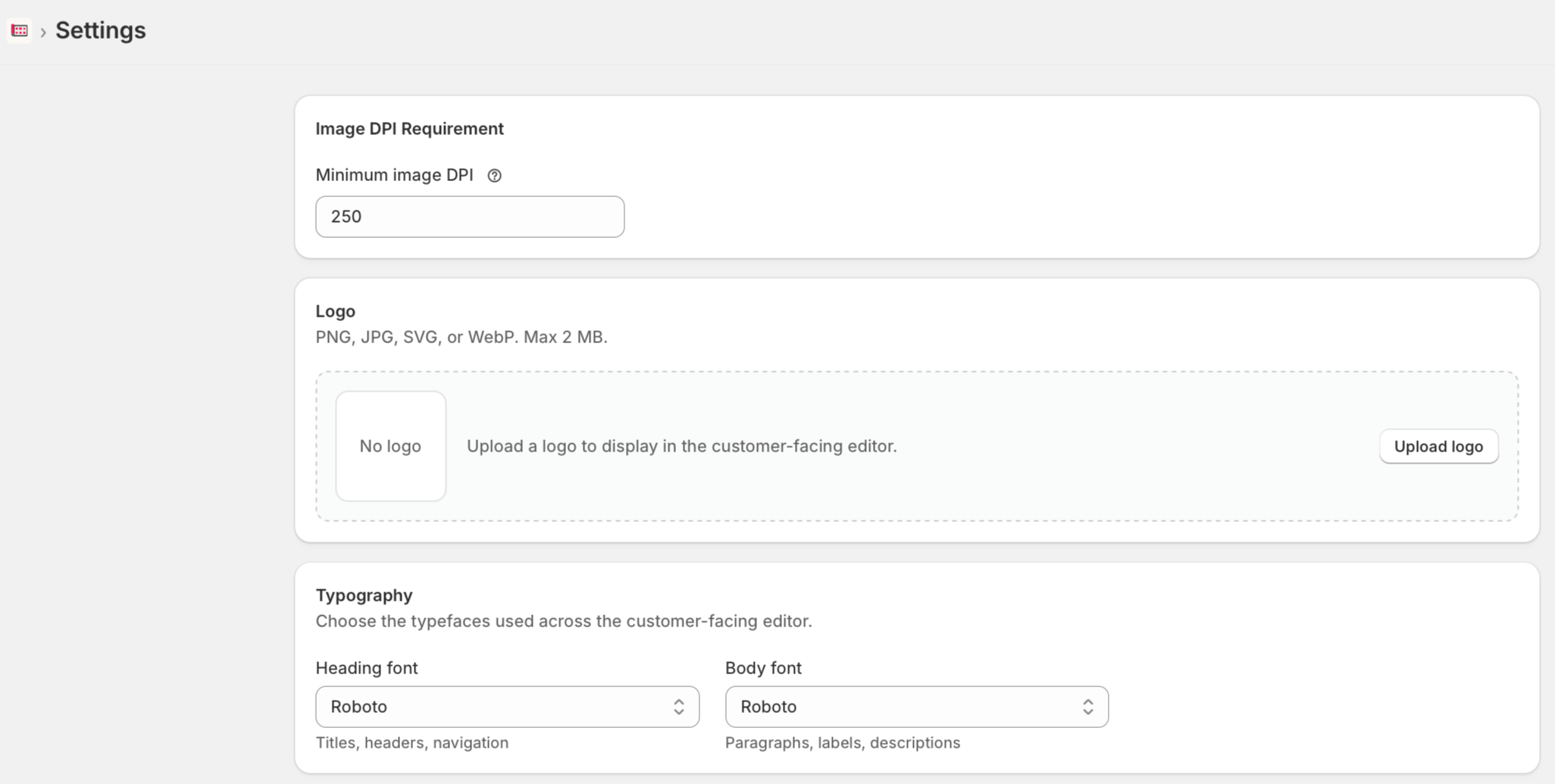 The following color fields are available:
| Field | Description |
| ----------------------- | ------------------------------------------------------ |
| **Background Color** | Main background of the editor canvas area |
| **Primary Color** | Primary action color — used for buttons and highlights |
| **Primary Light Color** | Lighter variant of the primary color for hover states |
| **Secondary Color** | Used for secondary text and UI elements |
| **Button Color** | Background color of non-primary buttons |
| **Button Text Color** | Text color on buttons |
| **Text Color** | Default body text color in the editor |
Enter a valid hex code (e.g., `#A86C30`) in each field. The Live Preview updates as you type.
## Image DPI Requirement
The following color fields are available:
| Field | Description |
| ----------------------- | ------------------------------------------------------ |
| **Background Color** | Main background of the editor canvas area |
| **Primary Color** | Primary action color — used for buttons and highlights |
| **Primary Light Color** | Lighter variant of the primary color for hover states |
| **Secondary Color** | Used for secondary text and UI elements |
| **Button Color** | Background color of non-primary buttons |
| **Button Text Color** | Text color on buttons |
| **Text Color** | Default body text color in the editor |
Enter a valid hex code (e.g., `#A86C30`) in each field. The Live Preview updates as you type.
## Image DPI Requirement
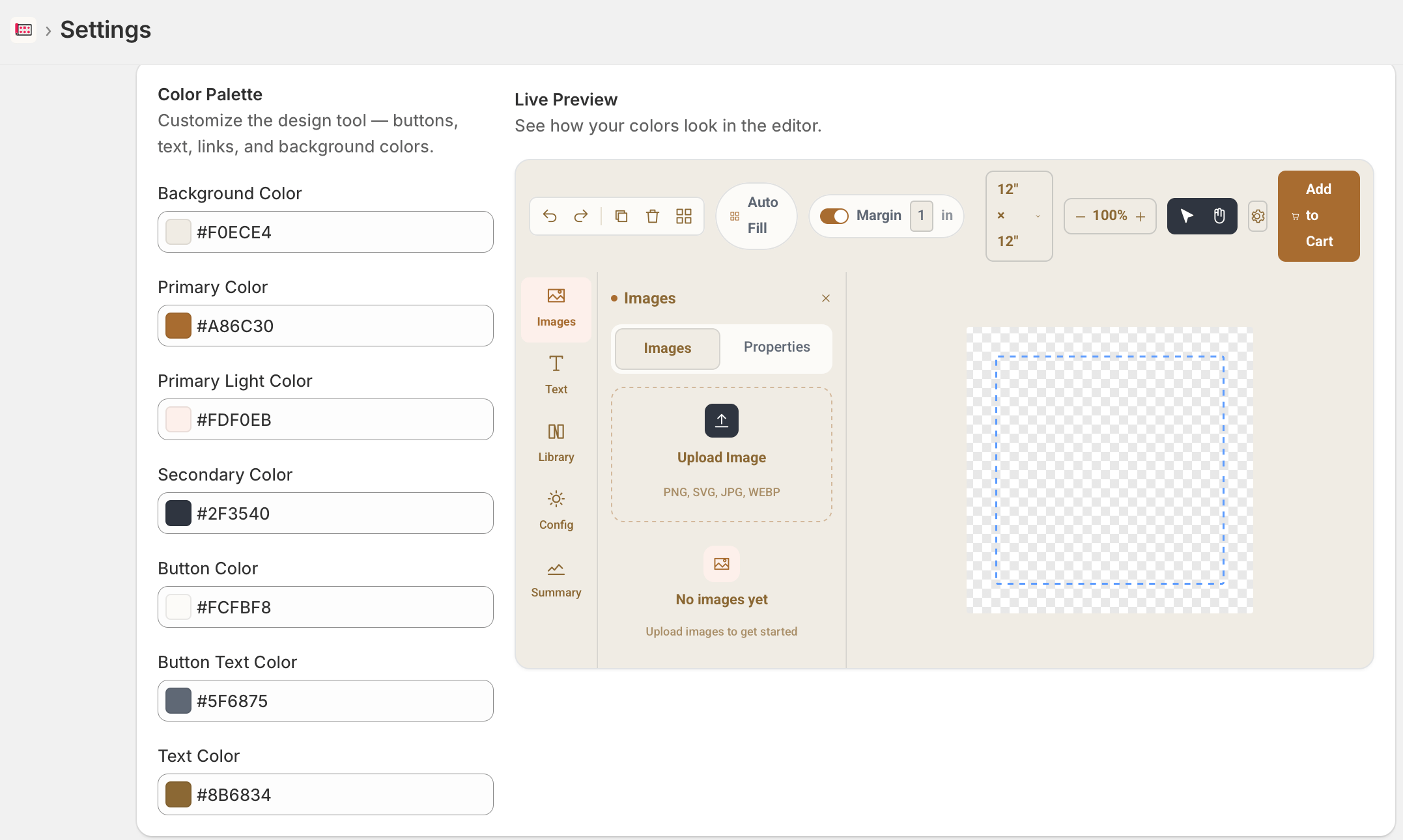 The **Image DPI Requirement** section sets the minimum DPI (dots per inch) customers must meet when uploading images. The default is **250 DPI**.
Requiring a minimum DPI ensures uploaded artwork is print-ready. Customers uploading low-resolution images will receive a warning in the editor.
To change the minimum DPI:
1. Click the **Minimum image DPI** field.
2. Enter your required DPI value.
3. Save your settings.
## Logo
Upload your store logo to display it in the customer-facing SheetSnap editor. Accepted formats are **PNG, JPG, SVG, or WebP** — maximum file size is **2 MB**.
To upload a logo:
1. In the **Logo** section, click **Upload logo**.
2. Select your logo file from your computer.
3. The logo will appear in the editor header for your customers.
## Typography
The **Typography** section lets you choose the fonts displayed in the SheetSnap editor for headings and body text.
| Font Role | Description |
| ---------------- | ----------------------------------------------- |
| **Heading font** | Used for titles, headers, and navigation labels |
| **Body font** | Used for paragraphs, labels, and descriptions |
To change a font:
1. Click the dropdown under **Heading font** or **Body font**.
2. Select a font from the list.
3. Save your settings.
Custom fonts uploaded on the [Fonts](/sheet-snap/fonts) page are available in the typography dropdowns.
The **Image DPI Requirement** section sets the minimum DPI (dots per inch) customers must meet when uploading images. The default is **250 DPI**.
Requiring a minimum DPI ensures uploaded artwork is print-ready. Customers uploading low-resolution images will receive a warning in the editor.
To change the minimum DPI:
1. Click the **Minimum image DPI** field.
2. Enter your required DPI value.
3. Save your settings.
## Logo
Upload your store logo to display it in the customer-facing SheetSnap editor. Accepted formats are **PNG, JPG, SVG, or WebP** — maximum file size is **2 MB**.
To upload a logo:
1. In the **Logo** section, click **Upload logo**.
2. Select your logo file from your computer.
3. The logo will appear in the editor header for your customers.
## Typography
The **Typography** section lets you choose the fonts displayed in the SheetSnap editor for headings and body text.
| Font Role | Description |
| ---------------- | ----------------------------------------------- |
| **Heading font** | Used for titles, headers, and navigation labels |
| **Body font** | Used for paragraphs, labels, and descriptions |
To change a font:
1. Click the dropdown under **Heading font** or **Body font**.
2. Select a font from the list.
3. Save your settings.
Custom fonts uploaded on the [Fonts](/sheet-snap/fonts) page are available in the typography dropdowns.