> ## Documentation Index
> Fetch the complete documentation index at: https://help.wtpbiz.com/llms.txt
> Use this file to discover all available pages before exploring further.
# Fonts
> Upload and manage custom fonts for the SheetSnap customer-facing editor.
## Fonts Overview
The **Fonts** page lets you upload custom typefaces that customers can use when adding text to their gang sheets. Uploaded fonts appear in the font selector inside the SheetSnap design tool.
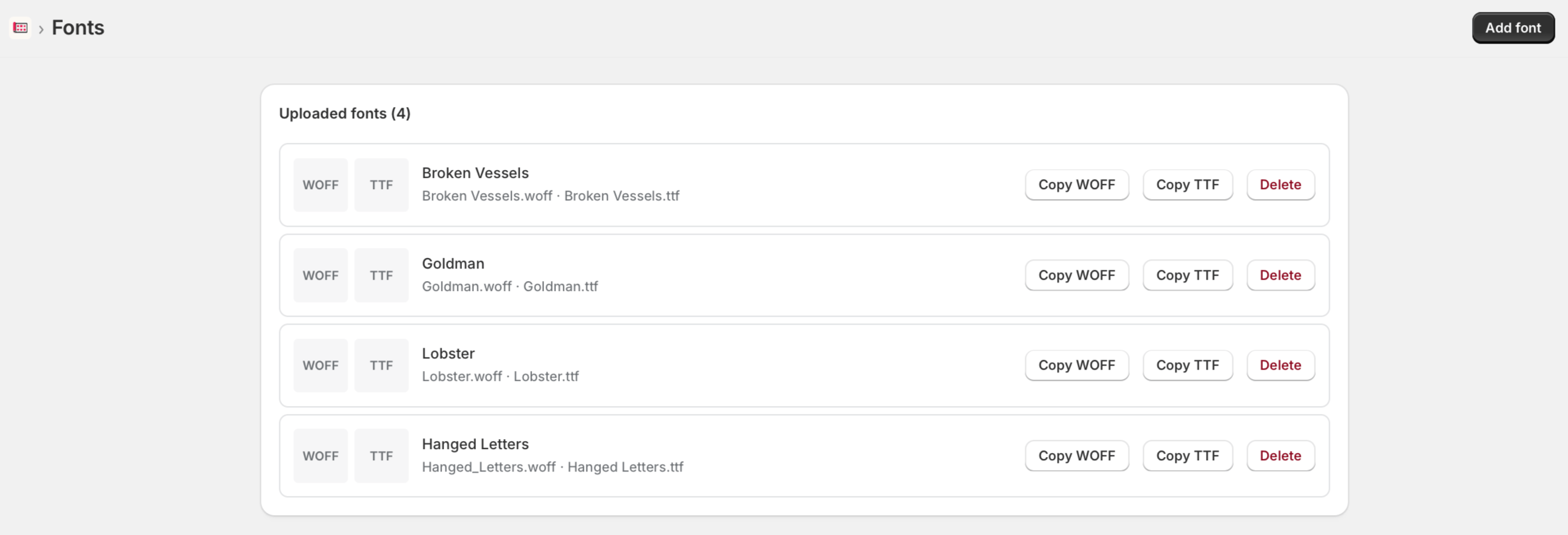 ## Uploaded Fonts
Each uploaded font is stored in both **WOFF** and **TTF** formats for broad browser and print compatibility. The Fonts page shows all fonts currently available in your editor.
Each font entry displays:
* Font name
* Filenames for both formats (e.g., `Goldman.woff · Goldman.ttf`)
* **Copy WOFF** and **Copy TTF** buttons to copy the hosted URL
* A **Delete** button to remove the font
## Adding a Font
To upload a new font:
1. Click **Add font** in the top-right corner.
2. Select your font file(s). Both WOFF and TTF formats are accepted.
3. The font will be processed and appear in the list once uploaded.
4. It will immediately become available in the font selector inside the SheetSnap editor.
## Copying Font URLs
You can copy the hosted URL for any uploaded font:
* Click **Copy WOFF** to copy the WOFF file URL.
* Click **Copy TTF** to copy the TTF file URL.
These URLs can be used in custom CSS or theme code if you want to apply the same font elsewhere in your store.
## Deleting a Font
To remove a font:
1. Click **Delete** next to the font you want to remove.
2. Confirm the deletion when prompted.
Deleting a font removes it from the editor immediately. Any existing designs that used that font may render with a fallback font.
## Using Fonts in Settings
Once fonts are uploaded here, they appear as options in the **Heading font** and **Body font** dropdowns on the [Settings](/sheet-snap/settings) page.
## Uploaded Fonts
Each uploaded font is stored in both **WOFF** and **TTF** formats for broad browser and print compatibility. The Fonts page shows all fonts currently available in your editor.
Each font entry displays:
* Font name
* Filenames for both formats (e.g., `Goldman.woff · Goldman.ttf`)
* **Copy WOFF** and **Copy TTF** buttons to copy the hosted URL
* A **Delete** button to remove the font
## Adding a Font
To upload a new font:
1. Click **Add font** in the top-right corner.
2. Select your font file(s). Both WOFF and TTF formats are accepted.
3. The font will be processed and appear in the list once uploaded.
4. It will immediately become available in the font selector inside the SheetSnap editor.
## Copying Font URLs
You can copy the hosted URL for any uploaded font:
* Click **Copy WOFF** to copy the WOFF file URL.
* Click **Copy TTF** to copy the TTF file URL.
These URLs can be used in custom CSS or theme code if you want to apply the same font elsewhere in your store.
## Deleting a Font
To remove a font:
1. Click **Delete** next to the font you want to remove.
2. Confirm the deletion when prompted.
Deleting a font removes it from the editor immediately. Any existing designs that used that font may render with a fallback font.
## Using Fonts in Settings
Once fonts are uploaded here, they appear as options in the **Heading font** and **Body font** dropdowns on the [Settings](/sheet-snap/settings) page.