> ## Documentation Index
> Fetch the complete documentation index at: https://help.wtpbiz.com/llms.txt
> Use this file to discover all available pages before exploring further.
# Settings
> Configure measurement units and image editing options
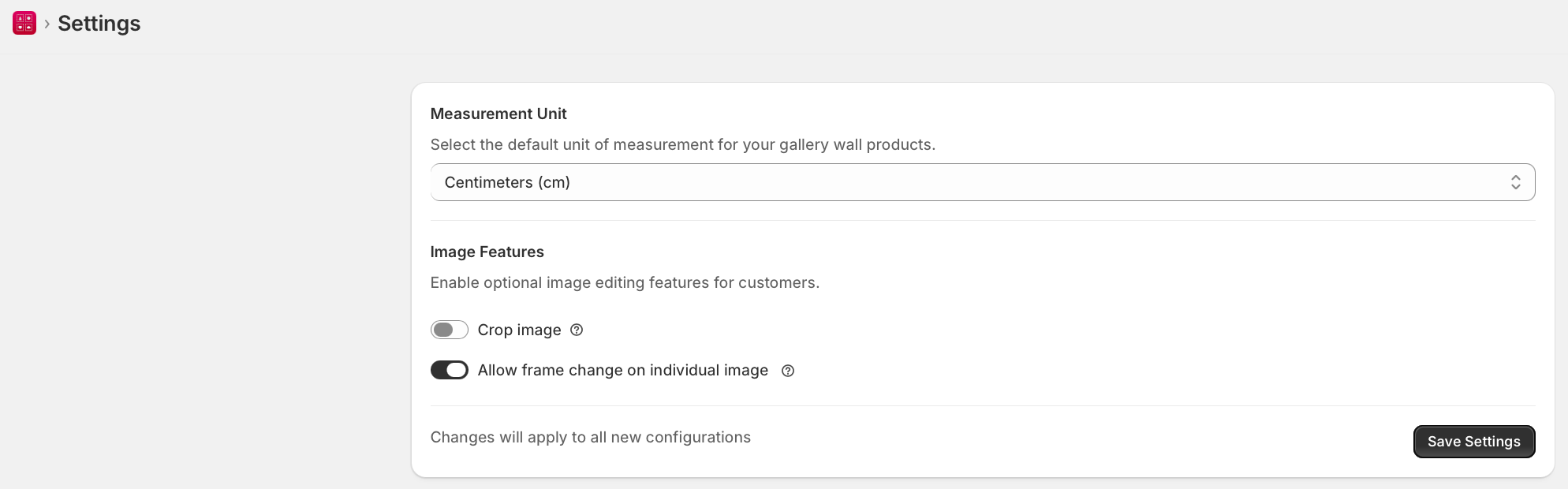
Settings controls the measurement unit and optional image editing features available to customers.
 ## Measurement Unit
1. Go to **WTPBiz Gallery Wall > Settings**.
2. Select **Centimeters (cm)** or **Inches** from the Measurement Unit dropdown.
3. Click **Save Settings**.
## Image Features
| Feature | Description |
| -------------------------------------- | --------------------------------------------------------------------------------------------------------------------- |
| Crop image | Allows customers to crop their uploaded photo before placing it in a frame slot. |
| Allow frame change on individual image | Lets customers change the frame style for each photo slot independently, rather than applying one frame to all slots. |
4. Toggle **Crop image** ON to let customers crop photos before placing them.
5. Toggle **Allow frame change on individual image** ON to let customers pick different frames per slot.
6. Click **Save Settings**.
Changes apply to all new configurations. Existing product configurations are not retroactively affected.
## Measurement Unit
1. Go to **WTPBiz Gallery Wall > Settings**.
2. Select **Centimeters (cm)** or **Inches** from the Measurement Unit dropdown.
3. Click **Save Settings**.
## Image Features
| Feature | Description |
| -------------------------------------- | --------------------------------------------------------------------------------------------------------------------- |
| Crop image | Allows customers to crop their uploaded photo before placing it in a frame slot. |
| Allow frame change on individual image | Lets customers change the frame style for each photo slot independently, rather than applying one frame to all slots. |
4. Toggle **Crop image** ON to let customers crop photos before placing them.
5. Toggle **Allow frame change on individual image** ON to let customers pick different frames per slot.
6. Click **Save Settings**.
Changes apply to all new configurations. Existing product configurations are not retroactively affected.