> ## Documentation Index
> Fetch the complete documentation index at: https://help.wtpbiz.com/llms.txt
> Use this file to discover all available pages before exploring further.
# Settings
> Configure branding, admin and design tool appearance, editor features, languages and help texts.
## Settings Overview
Settings has three pages: **Site Settings**, **Languages** and **Help Texts**. Site Settings has three tabs (**General**, **Branding** and **Appearance**) that share one **Save Settings** button. **Reset Theme** at the top right restores the default look.
## General
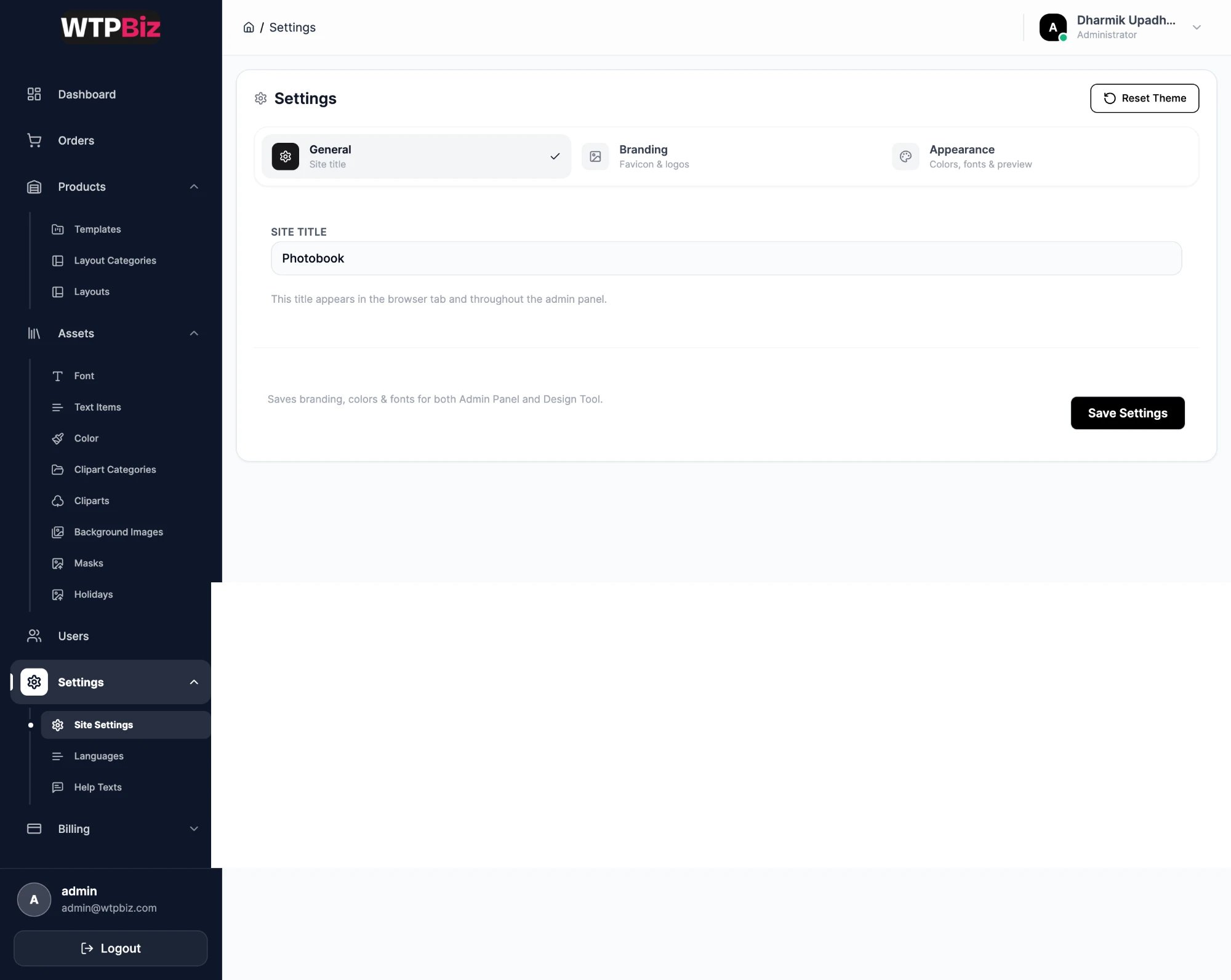 **Site Title** is the name shown in the browser tab and around the admin panel. Set it to your store or brand name.
## Branding
**Site Title** is the name shown in the browser tab and around the admin panel. Set it to your store or brand name.
## Branding
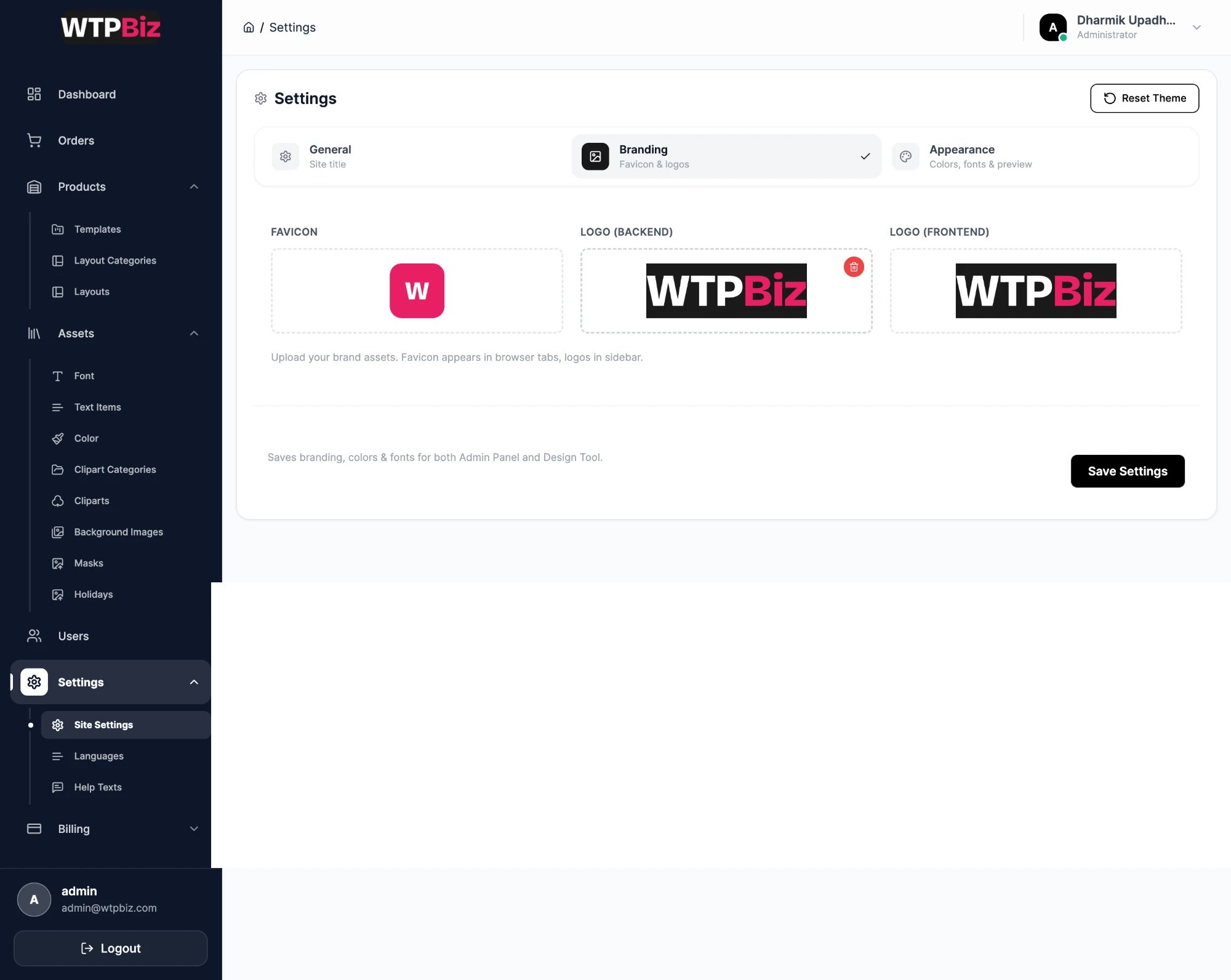 | Field | Description |
| - | - |
| **Favicon** | Small square icon for browser tabs |
| **Logo (Backend)** | Logo at the top of the admin sidebar |
| **Logo (Frontend)** | Logo customers see in the design tool |
Click the bin on an image to remove it, then upload your own file.
## Appearance: Admin Panel
| Field | Description |
| - | - |
| **Favicon** | Small square icon for browser tabs |
| **Logo (Backend)** | Logo at the top of the admin sidebar |
| **Logo (Frontend)** | Logo customers see in the design tool |
Click the bin on an image to remove it, then upload your own file.
## Appearance: Admin Panel
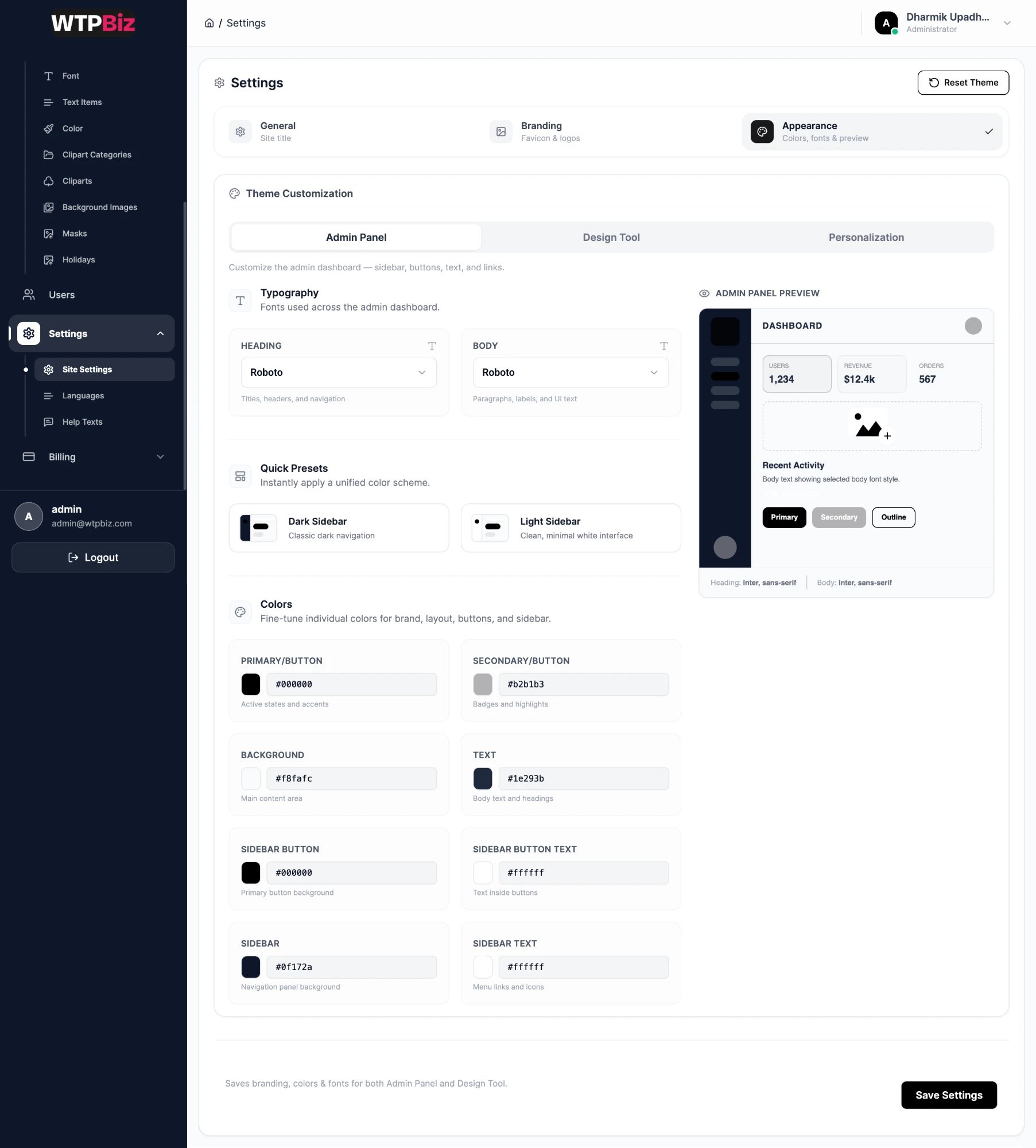 The **Appearance** tab has three sub-tabs: **Admin Panel**, **Design Tool** and **Personalization**. The Admin Panel theme is only seen by your staff.
* **Typography** — heading and body fonts.
* **Quick Presets** — one-click **Dark Sidebar** or **Light Sidebar** color schemes.
* **Colors** — primary/button, secondary, background, text, sidebar button, sidebar button text, sidebar and sidebar text.
* **Admin Panel Preview** — updates as you change fonts and colors.
## Appearance: Design Tool
The **Appearance** tab has three sub-tabs: **Admin Panel**, **Design Tool** and **Personalization**. The Admin Panel theme is only seen by your staff.
* **Typography** — heading and body fonts.
* **Quick Presets** — one-click **Dark Sidebar** or **Light Sidebar** color schemes.
* **Colors** — primary/button, secondary, background, text, sidebar button, sidebar button text, sidebar and sidebar text.
* **Admin Panel Preview** — updates as you change fonts and colors.
## Appearance: Design Tool
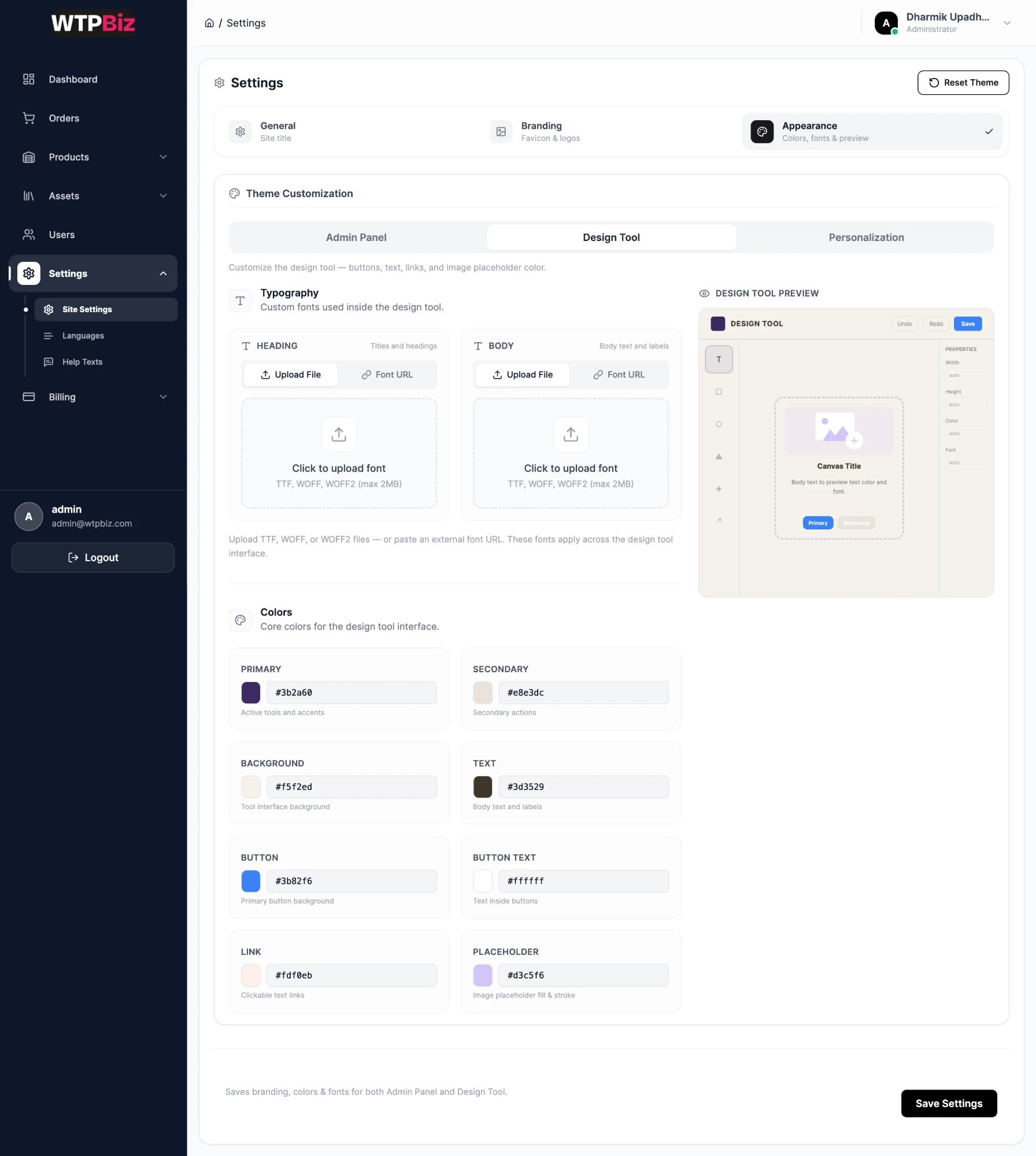 Styles the editor customers use on your storefront. Match it to your store theme so the editor feels part of your shop.
* **Typography** — heading and body fonts for the editor interface. **Upload File** (TTF, WOFF or WOFF2, max 2 MB) or paste a **Font URL**. These are separate from the [Fonts](/photobook-designer/assets#fonts) library customers use in their designs.
* **Colors** — Primary, Secondary, Background, Text, Button, Button Text, Link and Placeholder (the fill of empty photo slots).
* **Design Tool Preview** — a mock editor that updates as you make changes.
Choose a link color with strong contrast against the background so links stay readable.
## Appearance: Personalization
Styles the editor customers use on your storefront. Match it to your store theme so the editor feels part of your shop.
* **Typography** — heading and body fonts for the editor interface. **Upload File** (TTF, WOFF or WOFF2, max 2 MB) or paste a **Font URL**. These are separate from the [Fonts](/photobook-designer/assets#fonts) library customers use in their designs.
* **Colors** — Primary, Secondary, Background, Text, Button, Button Text, Link and Placeholder (the fill of empty photo slots).
* **Design Tool Preview** — a mock editor that updates as you make changes.
Choose a link color with strong contrast against the background so links stay readable.
## Appearance: Personalization
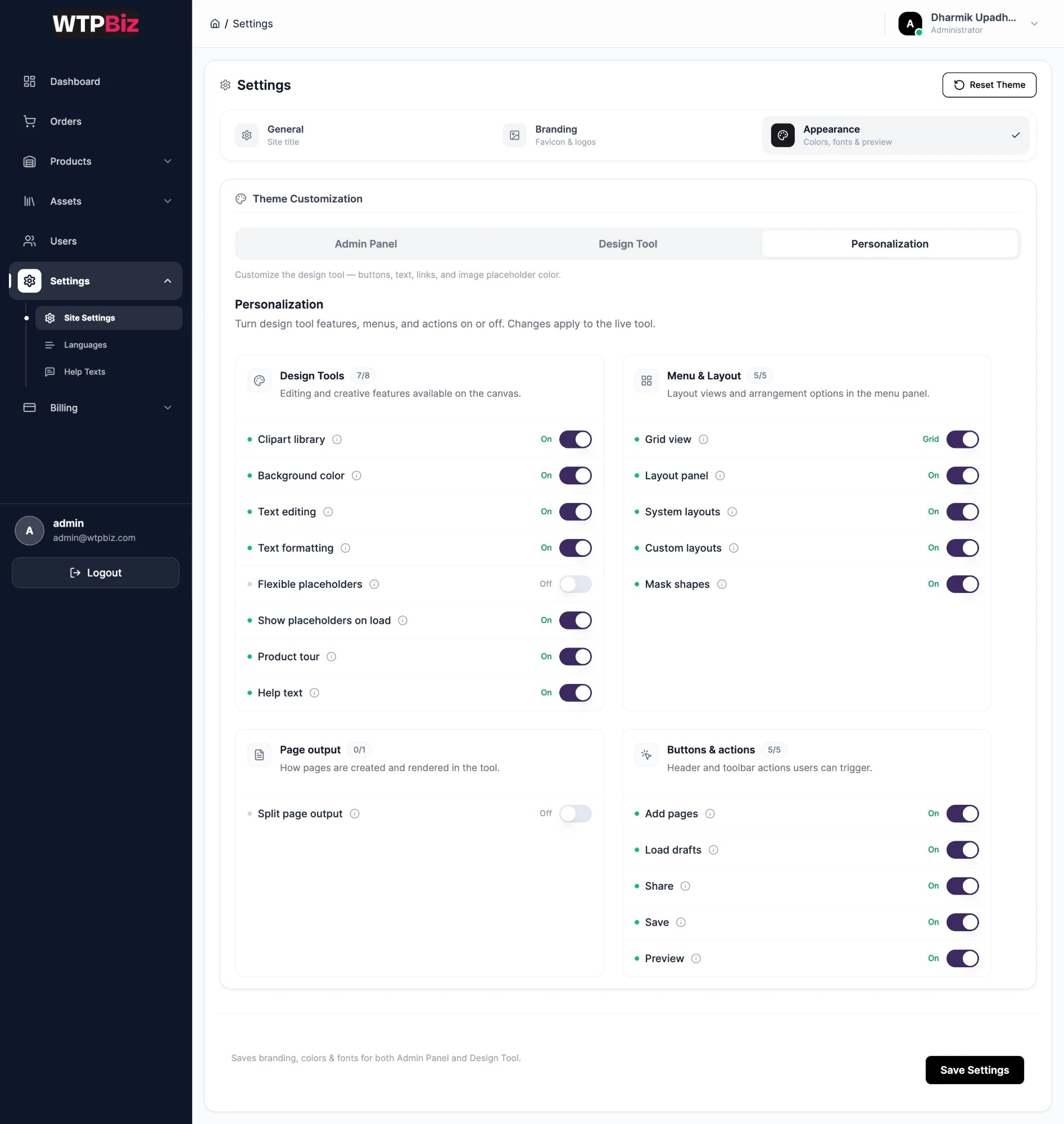 Switches that turn editor features on or off for customers. Each group shows how many switches are on. Hover the ⓘ icon for details. Changes apply after **Save Settings**.
| Group | Features |
| - | - |
| **Design Tools** | Clipart library, Background color, Text editing, Text formatting, Show placeholders on load, Flexible placeholders, Product tour, Help text |
| **Menu & Layout** | Grid view, Layout panel, System layouts, Custom layouts, Mask shapes |
| **Page output** | Split page output |
| **Buttons & actions** | Add pages, Load drafts, Share, Save, Preview |
Keep **Save** and **Load drafts** on so customers can finish their book later. Turn off features that don't fit your product, for example **Add pages** on a fixed-page book. Check with your printer before changing **Split page output**.
## Languages
Go to **Sidebar > Settings > Languages**.
Switches that turn editor features on or off for customers. Each group shows how many switches are on. Hover the ⓘ icon for details. Changes apply after **Save Settings**.
| Group | Features |
| - | - |
| **Design Tools** | Clipart library, Background color, Text editing, Text formatting, Show placeholders on load, Flexible placeholders, Product tour, Help text |
| **Menu & Layout** | Grid view, Layout panel, System layouts, Custom layouts, Mask shapes |
| **Page output** | Split page output |
| **Buttons & actions** | Add pages, Load drafts, Share, Save, Preview |
Keep **Save** and **Load drafts** on so customers can finish their book later. Turn off features that don't fit your product, for example **Add pages** on a fixed-page book. Check with your printer before changing **Split page output**.
## Languages
Go to **Sidebar > Settings > Languages**.
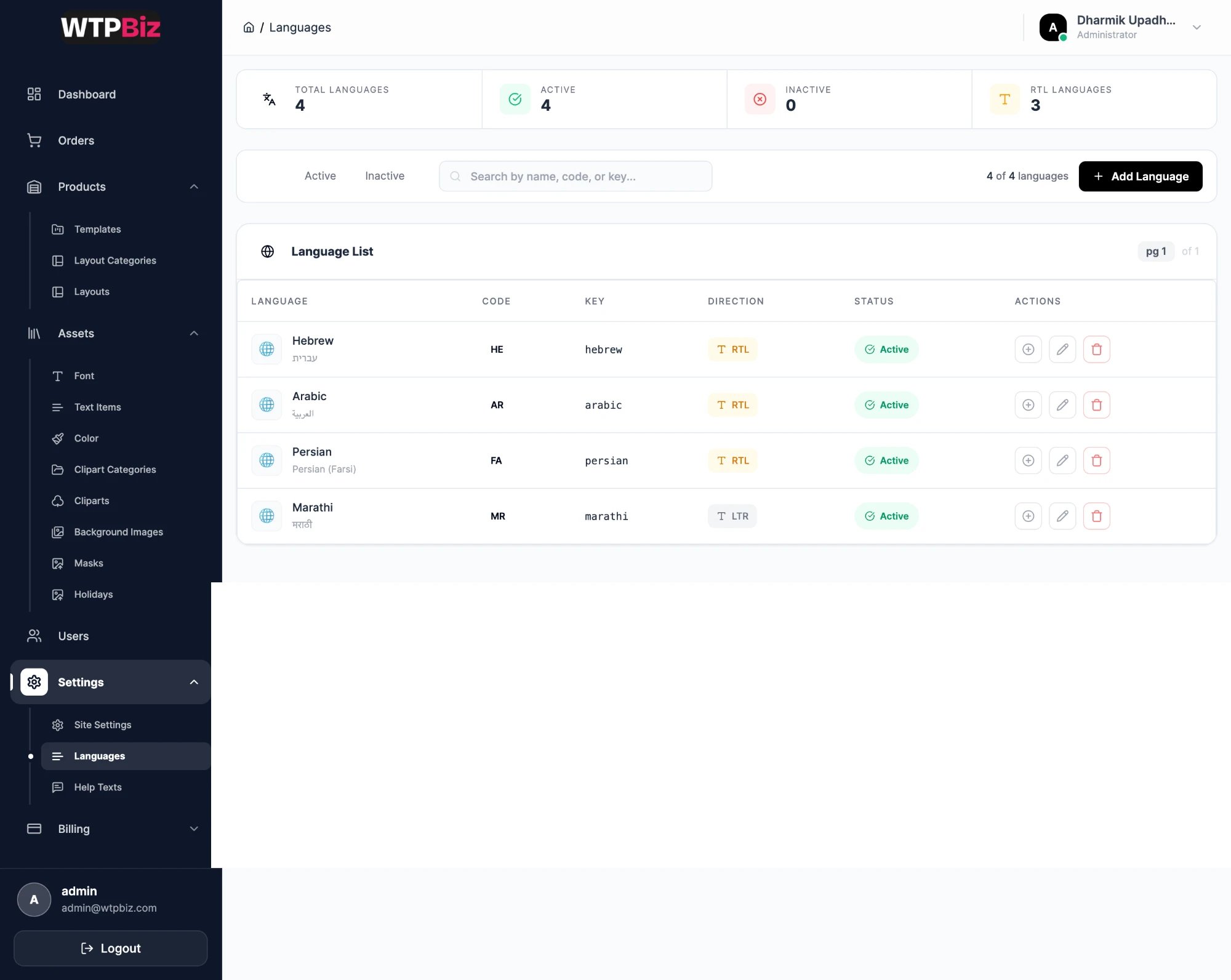 The **Language List** shows each language with its code, key, direction (RTL or LTR) and status. Right-to-left languages such as Arabic or Hebrew mirror the whole editor. Use the **Active** and **Inactive** tabs and search to filter. Click **Add Language** to add one.
## Help Texts
Go to **Sidebar > Settings > Help Texts**.
The **Language List** shows each language with its code, key, direction (RTL or LTR) and status. Right-to-left languages such as Arabic or Hebrew mirror the whole editor. Use the **Active** and **Inactive** tabs and search to filter. Click **Add Language** to add one.
## Help Texts
Go to **Sidebar > Settings > Help Texts**.
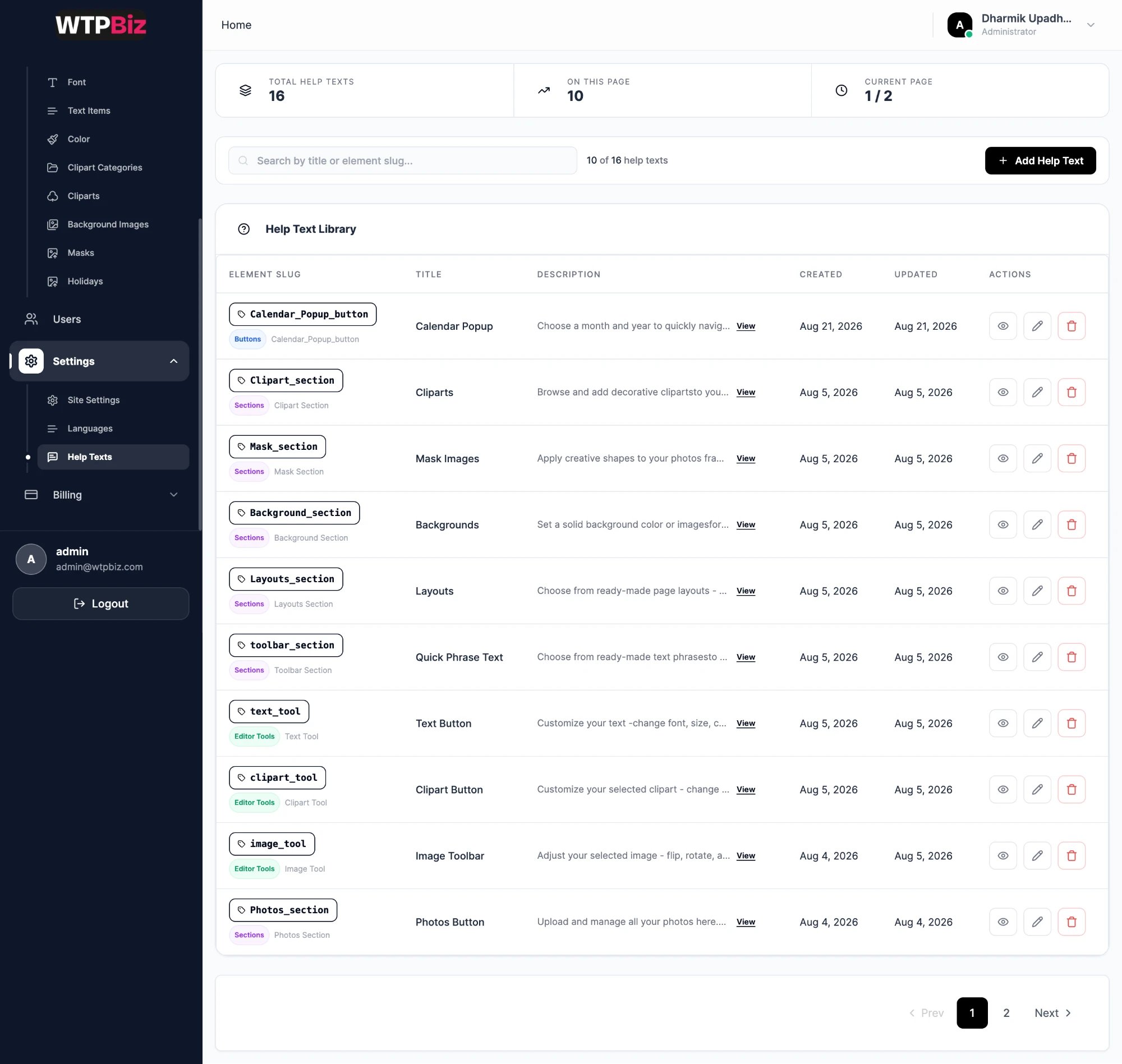 Help texts are the tooltips and hints customers see in the design tool. Each is tied to an editor element by its **Element Slug** and tagged as **Buttons**, **Sections** or **Editor Tools**. Edit the **Title** and **Description** to match your store's tone of voice.