> ## Documentation Index
> Fetch the complete documentation index at: https://help.wtpbiz.com/llms.txt
> Use this file to discover all available pages before exploring further.
# Orders
> Find customer photo book and calendar orders and download print-ready PDF files.
## Orders List
Go to **Sidebar > Orders** to see every customer project.
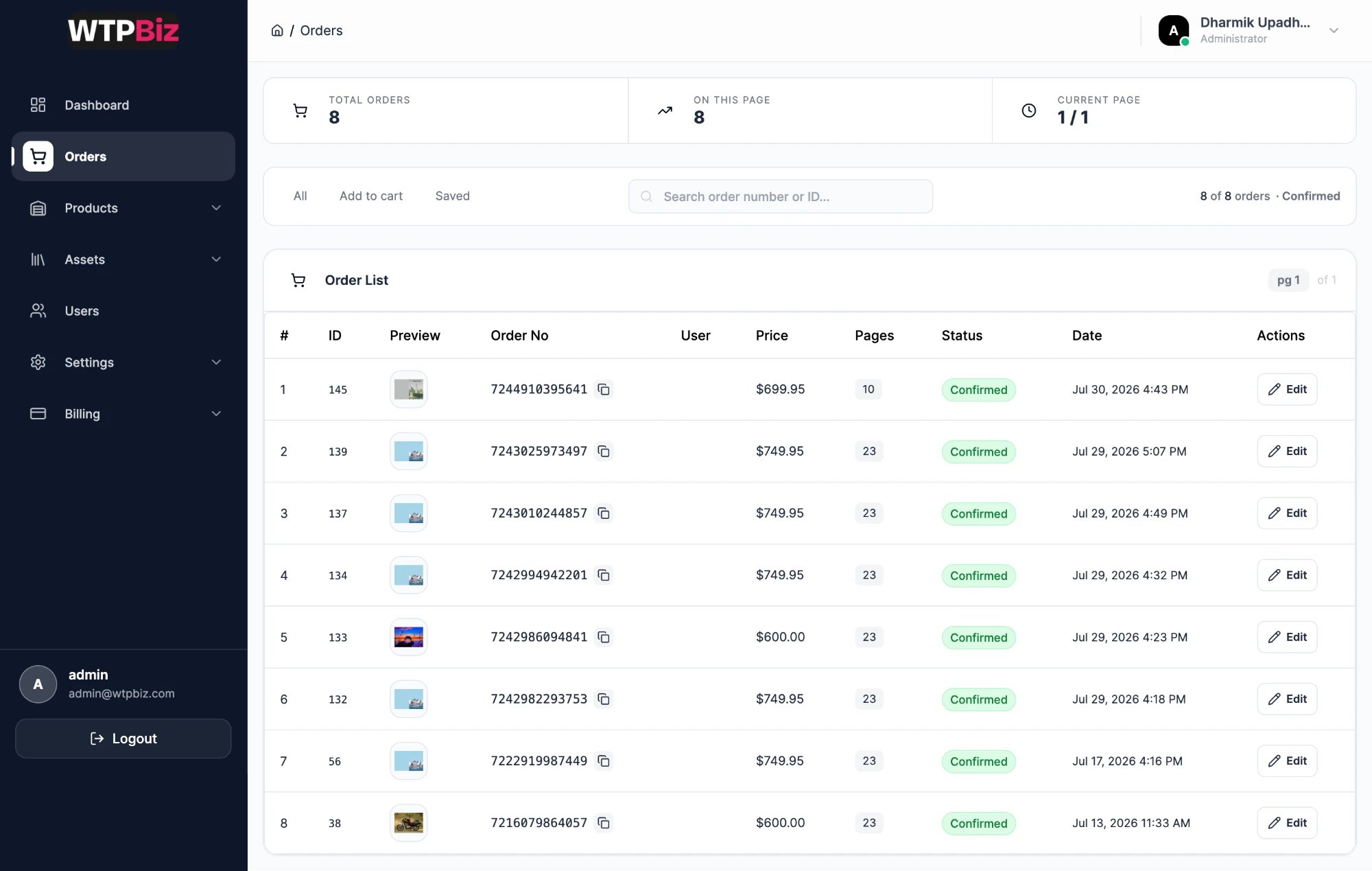 * **Summary strip** — total orders, orders on this page and page number.
* **Filter tabs** — **All** shows every project. **Add to cart** shows designs a customer added to the cart but has not bought yet. **Saved** shows drafts saved in the editor. Use the last two to follow up on unfinished books.
* **Search** — find an order by its Shopify order number or internal ID.
* **Order List** — one row per book: ID, cover preview, Shopify order number (with copy button), user, price, page count, status and date. Click **Edit** to open the order.
## Order Details
* **Summary strip** — total orders, orders on this page and page number.
* **Filter tabs** — **All** shows every project. **Add to cart** shows designs a customer added to the cart but has not bought yet. **Saved** shows drafts saved in the editor. Use the last two to follow up on unfinished books.
* **Search** — find an order by its Shopify order number or internal ID.
* **Order List** — one row per book: ID, cover preview, Shopify order number (with copy button), user, price, page count, status and date. Click **Edit** to open the order.
## Order Details
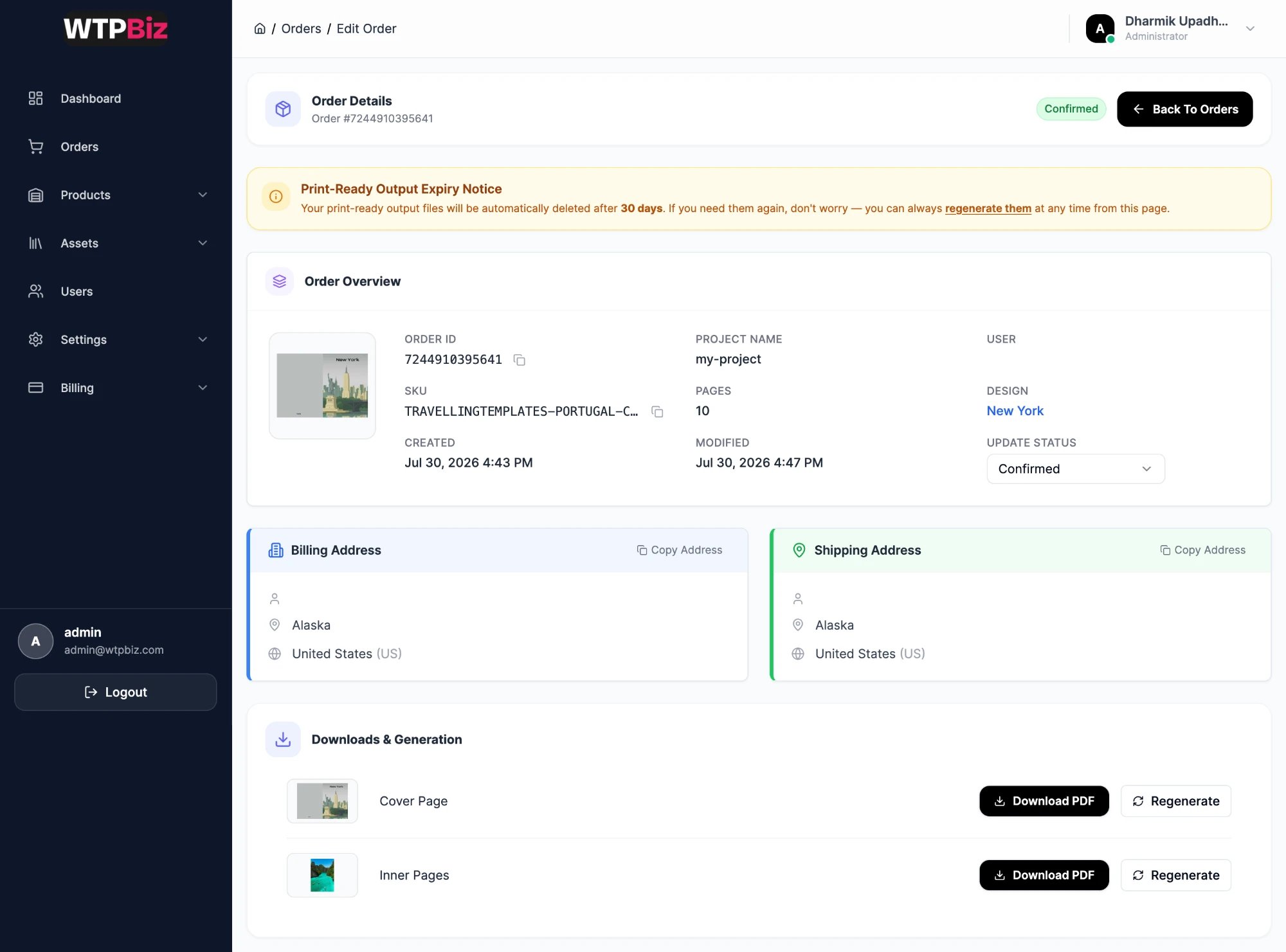 * **Order Overview** — cover preview, order ID, SKU, project name, page count, the design used, and created and modified times.
* **Update Status** — change the order status, for example to mark it printed or shipped.
* **Billing / Shipping Address** — taken from the Shopify order, each with a **Copy Address** button.
* **Downloads & Generation** — separate print files for the **Cover Page** and **Inner Pages**. **Download PDF** downloads the file. **Regenerate** rebuilds it.
Print-ready files are deleted automatically after **30 days**. Download them or send them to your printer within 30 days. You can use **Regenerate** to create them again at any time.
## Fulfilling an Order
1. Go to **Orders** and find the order.
2. Click **Edit**.
3. Click **Download PDF** for the **Cover Page** and the **Inner Pages**.
4. Send both files to your printer.
5. Change **Update Status** to track progress.
* **Order Overview** — cover preview, order ID, SKU, project name, page count, the design used, and created and modified times.
* **Update Status** — change the order status, for example to mark it printed or shipped.
* **Billing / Shipping Address** — taken from the Shopify order, each with a **Copy Address** button.
* **Downloads & Generation** — separate print files for the **Cover Page** and **Inner Pages**. **Download PDF** downloads the file. **Regenerate** rebuilds it.
Print-ready files are deleted automatically after **30 days**. Download them or send them to your printer within 30 days. You can use **Regenerate** to create them again at any time.
## Fulfilling an Order
1. Go to **Orders** and find the order.
2. Click **Edit**.
3. Click **Download PDF** for the **Cover Page** and the **Inner Pages**.
4. Send both files to your printer.
5. Change **Update Status** to track progress.