> ## Documentation Index
> Fetch the complete documentation index at: https://help.wtpbiz.com/llms.txt
> Use this file to discover all available pages before exploring further.
# Layouts
> Organize page layouts into categories so customers can rearrange photo slots in the editor.
## Layouts Overview
Layouts are ready-made page arrangements of photo slots and text boxes. Customers pick one from the **Layouts** panel in the editor to rearrange a page instantly. **Layout Categories** group them by page type.
## Layout Categories
Go to **Sidebar > Products > Layout Categories**.
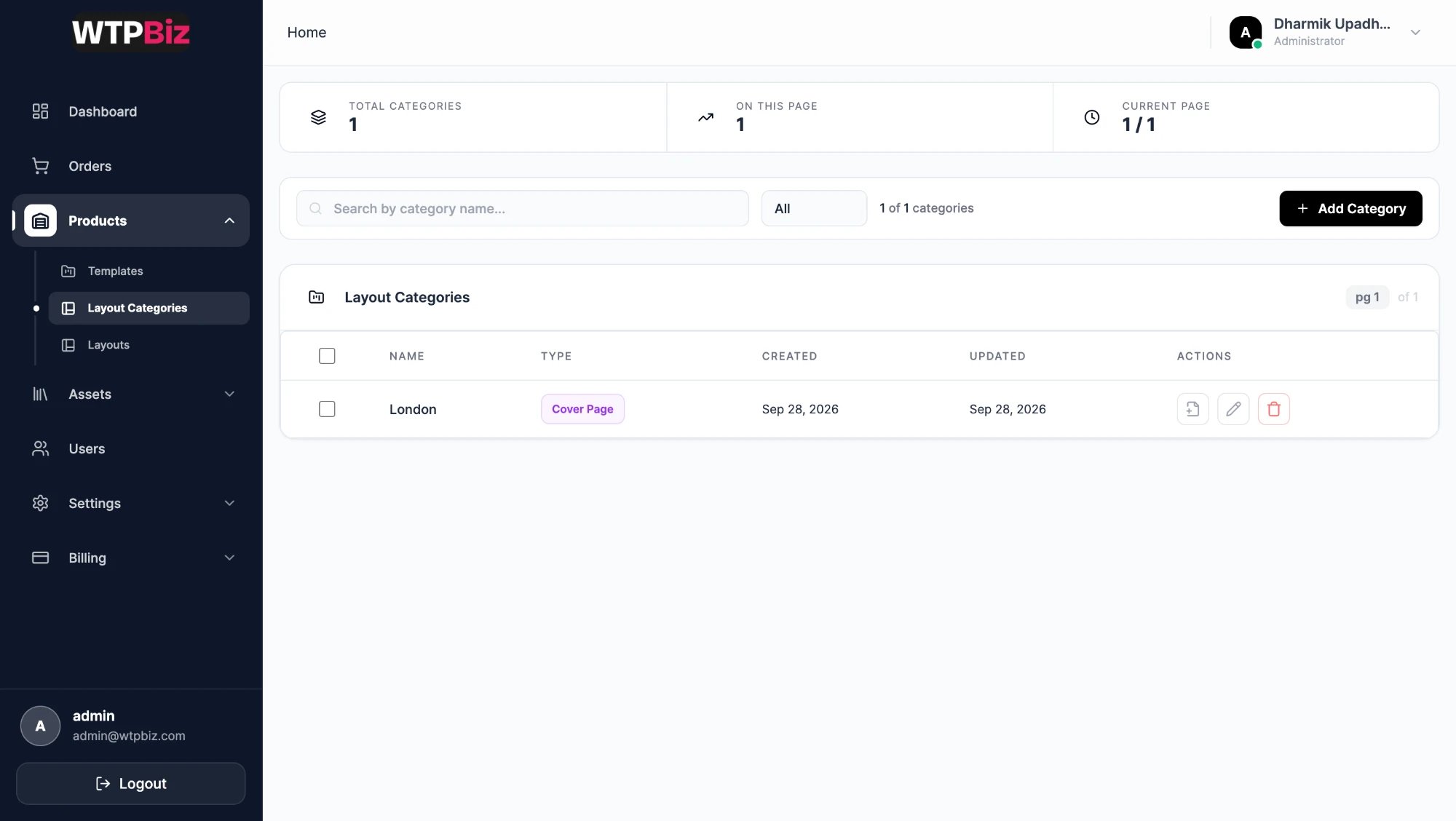 * **Filters** — search by name, or filter by type with the **All** dropdown.
* **Table** — checkbox for bulk selection, **Name**, **Type** and dates.
* **Type** — decides where the category's layouts can be used. For example, **Cover Page** layouts appear only on the cover.
* **Actions** — view the layouts in the category, edit (pencil) or delete (bin).
* **Add Category** — enter a name and choose its type.
## Layouts
Go to **Sidebar > Products > Layouts**.
* **Filters** — search by name, or filter by type with the **All** dropdown.
* **Table** — checkbox for bulk selection, **Name**, **Type** and dates.
* **Type** — decides where the category's layouts can be used. For example, **Cover Page** layouts appear only on the cover.
* **Actions** — view the layouts in the category, edit (pencil) or delete (bin).
* **Add Category** — enter a name and choose its type.
## Layouts
Go to **Sidebar > Products > Layouts**.
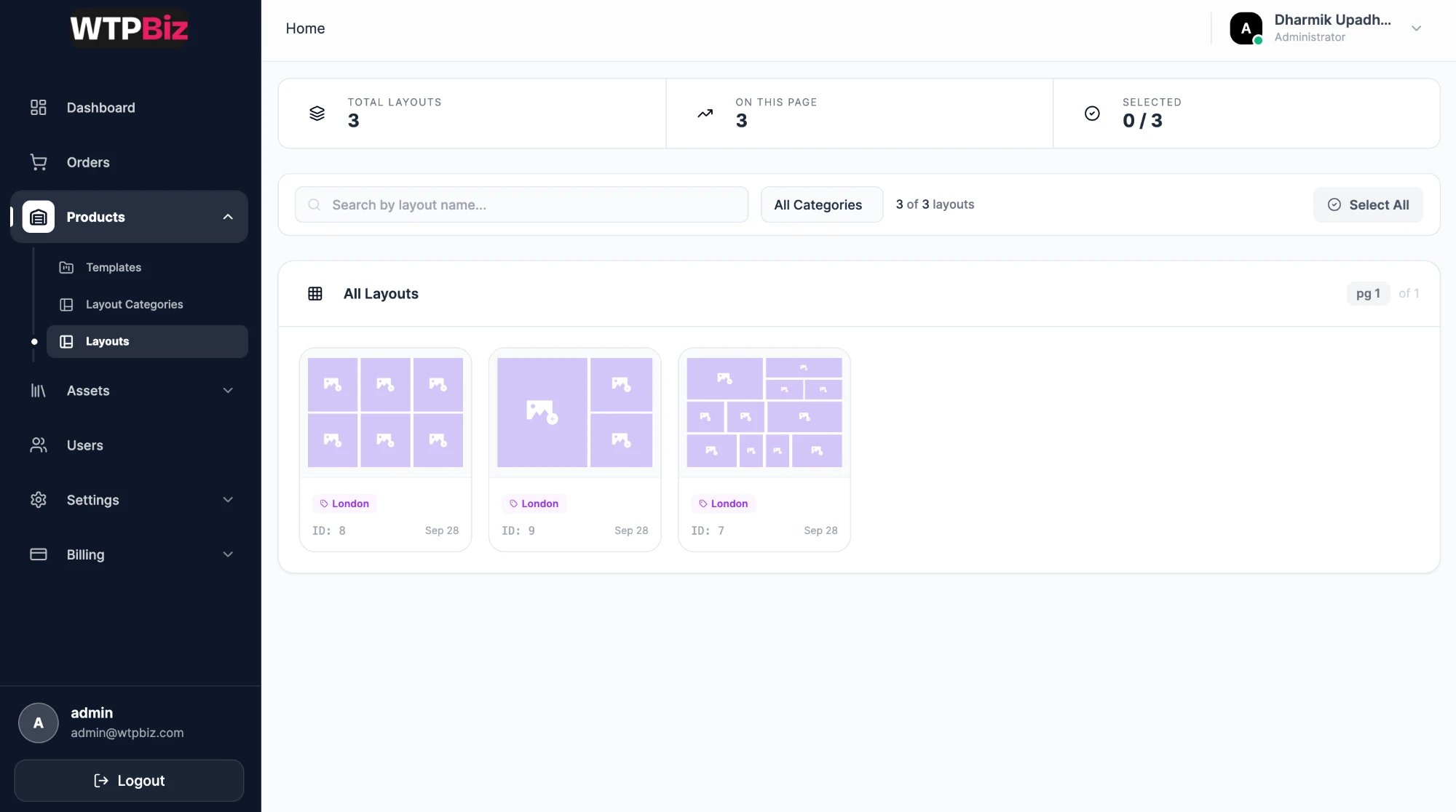 * **Summary strip** — total layouts, layouts on this page and the number selected.
* **Filters** — search by layout name, or choose a category from **All Categories**.
* **Layout cards** — each card shows the arrangement (purple boxes are photo slots), its category, ID and date.
* **Select All** — select every layout on the page for bulk actions.
* **Summary strip** — total layouts, layouts on this page and the number selected.
* **Filters** — search by layout name, or choose a category from **All Categories**.
* **Layout cards** — each card shows the arrangement (purple boxes are photo slots), its category, ID and date.
* **Select All** — select every layout on the page for bulk actions.