> ## Documentation Index
> Fetch the complete documentation index at: https://help.wtpbiz.com/llms.txt
> Use this file to discover all available pages before exploring further.
# Integration
> Turn on the Photobook Designer app embed and add the Personalize button to your product page.
## Overview
Photobook Designer connects to your store in the Shopify theme editor. There are two steps, both done under **Online Store > Themes > Customize**:
1. Turn on the **Photobook Designer** app embed (once per theme).
2. Add the **Personalize Button** block to your product template.
No code is required.
## Step 1: Turn On the App Embed
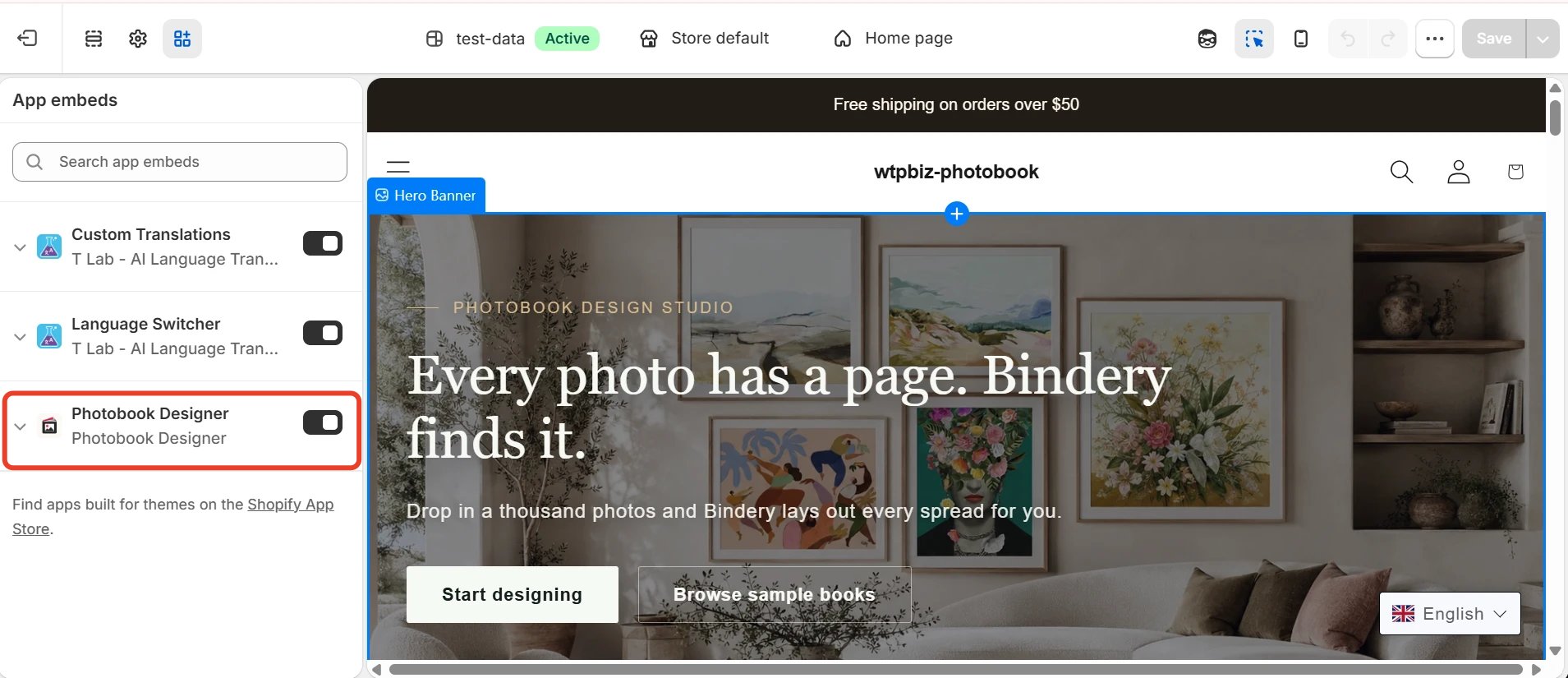 1. In your Shopify admin, go to **Online Store > Themes**.
2. Click **Customize** on your active theme.
3. Click the **App embeds** icon in the left toolbar.
4. Switch **Photobook Designer** on (highlighted).
5. Click **Save**.
The app embed loads the designer on your storefront. Without it, the Personalize button does nothing.
## Step 2: Add the Personalize Button
1. In your Shopify admin, go to **Online Store > Themes**.
2. Click **Customize** on your active theme.
3. Click the **App embeds** icon in the left toolbar.
4. Switch **Photobook Designer** on (highlighted).
5. Click **Save**.
The app embed loads the designer on your storefront. Without it, the Personalize button does nothing.
## Step 2: Add the Personalize Button
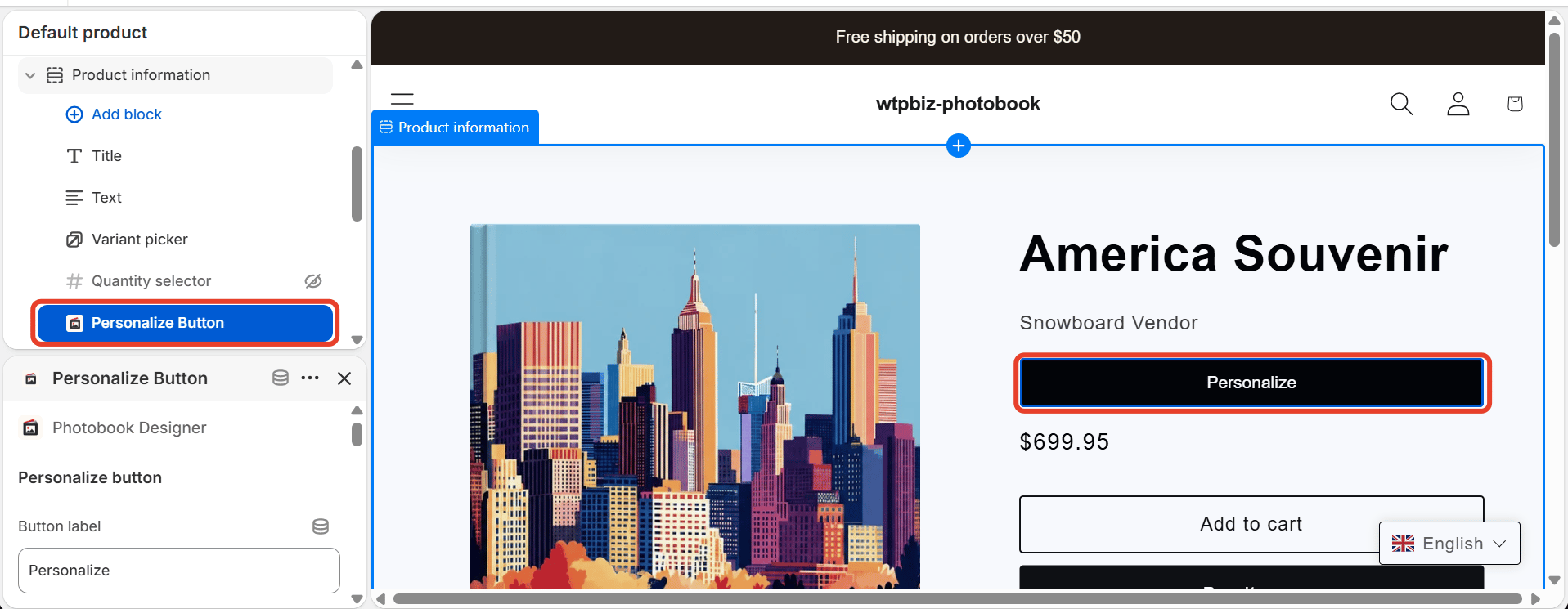 1. From the page selector at the top of the theme editor, choose **Products > Default product** (or the product template you use for photo books).
2. Under **Product information**, click **Add block** > **Apps** > **Personalize Button** (Photobook Designer).
3. Drag the block to where the button should appear, for example under the variant picker and above the price.
4. Select the block to open its settings. **Button label** sets the button text, for example "Personalize".
5. Click **Save**.
The product page now shows a **Personalize** button. Clicking it opens the design editor for that product.
For photo book products, hide **Add to cart** and **Buy it now**, or use a separate product template without them, so customers design their book before checking out.
## Verify the Integration
Open the product page on your live store and confirm the **Personalize** button is visible and opens the editor. If it does not appear, check that:
* The **Photobook Designer** app embed is switched on and saved.
* The **Personalize Button** block is on the product template the product uses.
* The product is linked to a design SKU from the Design Library. See [Templates](/photobook-designer/templates).
1. From the page selector at the top of the theme editor, choose **Products > Default product** (or the product template you use for photo books).
2. Under **Product information**, click **Add block** > **Apps** > **Personalize Button** (Photobook Designer).
3. Drag the block to where the button should appear, for example under the variant picker and above the price.
4. Select the block to open its settings. **Button label** sets the button text, for example "Personalize".
5. Click **Save**.
The product page now shows a **Personalize** button. Clicking it opens the design editor for that product.
For photo book products, hide **Add to cart** and **Buy it now**, or use a separate product template without them, so customers design their book before checking out.
## Verify the Integration
Open the product page on your live store and confirm the **Personalize** button is visible and opens the editor. If it does not appear, check that:
* The **Photobook Designer** app embed is switched on and saved.
* The **Personalize Button** block is on the product template the product uses.
* The product is linked to a design SKU from the Design Library. See [Templates](/photobook-designer/templates).