> ## Documentation Index
> Fetch the complete documentation index at: https://help.wtpbiz.com/llms.txt
> Use this file to discover all available pages before exploring further.
# Colors
> Configure frame color options for Photo Frame Customizer
## Colors Overview
The **Colors** section lets you define the color options that customers can choose when customizing their frame. Colors appear as swatches in the customer-facing customizer widget.
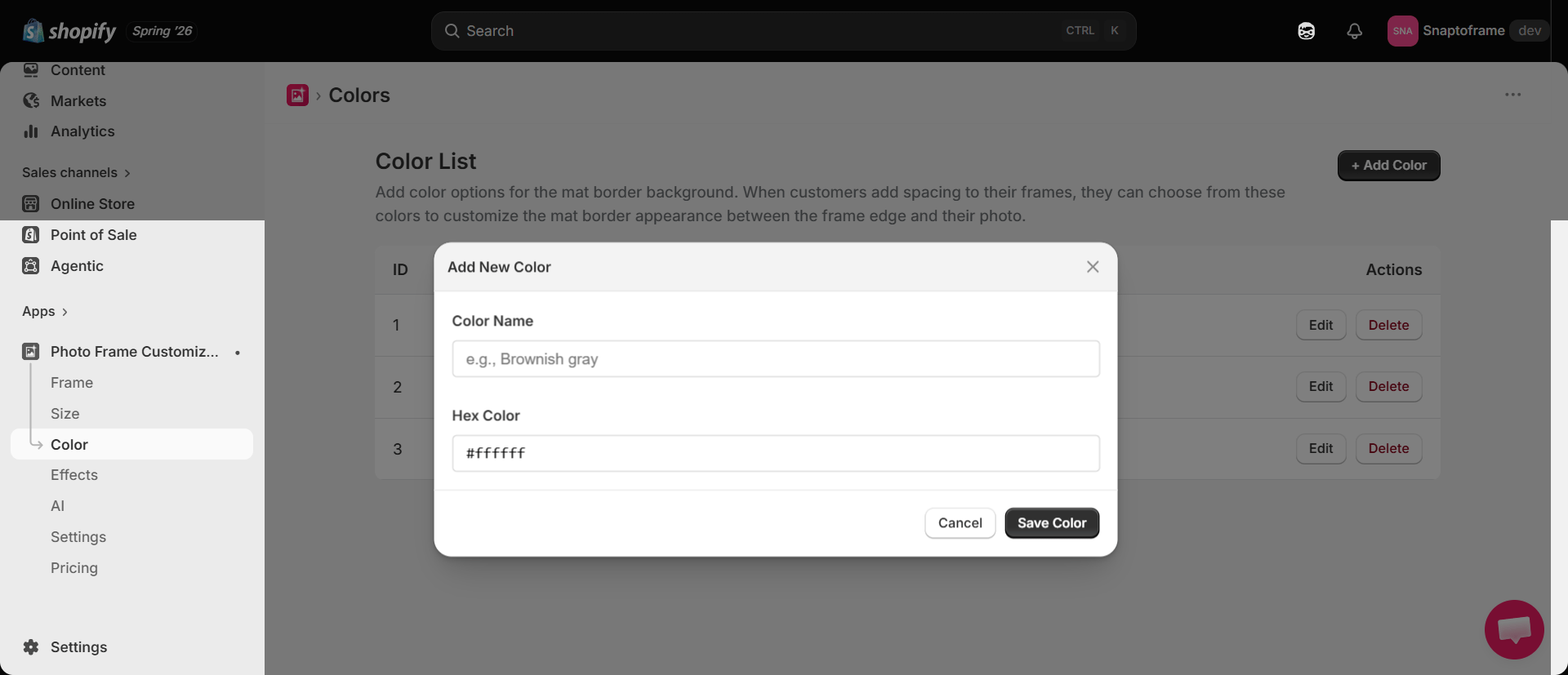 ## Adding a Color
1. In Photo Frame Customizer, navigate to **Colors** in the sidebar.
2. Click **Add Color**.
3. Fill in the color details:
* **Color Name** — Enter a descriptive name (e.g., "Black", "White", "Natural Oak", "Walnut").
* **Color Value** — Enter the hex color code (e.g., `#000000` for black, `#FFFFFF` for white). This is used to render the color swatch in the customizer.
4. Click **Save** to add the color.
## Common Frame Colors
Here are some popular frame color options to get you started:
* **Black** — `#1a1a1a`
* **White** — `#f5f5f5`
* **Natural Oak** — `#c8a96e`
* **Walnut** — `#5c3d1e`
* **Silver** — `#c0c0c0`
* **Gold** — `#d4af37`
## Managing Colors
* **Edit:** Click the edit icon next to any color to update its name or hex value.
* **Delete:** Click the delete icon to remove a color option.
* **Reorder:** Drag colors to change the order they appear as swatches in the customizer.
Use accurate hex values for your frame colors so the swatches realistically represent the available frame finishes. Customers use swatches to make their selection before purchasing.
## Adding a Color
1. In Photo Frame Customizer, navigate to **Colors** in the sidebar.
2. Click **Add Color**.
3. Fill in the color details:
* **Color Name** — Enter a descriptive name (e.g., "Black", "White", "Natural Oak", "Walnut").
* **Color Value** — Enter the hex color code (e.g., `#000000` for black, `#FFFFFF` for white). This is used to render the color swatch in the customizer.
4. Click **Save** to add the color.
## Common Frame Colors
Here are some popular frame color options to get you started:
* **Black** — `#1a1a1a`
* **White** — `#f5f5f5`
* **Natural Oak** — `#c8a96e`
* **Walnut** — `#5c3d1e`
* **Silver** — `#c0c0c0`
* **Gold** — `#d4af37`
## Managing Colors
* **Edit:** Click the edit icon next to any color to update its name or hex value.
* **Delete:** Click the delete icon to remove a color option.
* **Reorder:** Drag colors to change the order they appear as swatches in the customizer.
Use accurate hex values for your frame colors so the swatches realistically represent the available frame finishes. Customers use swatches to make their selection before purchasing.