> ## Documentation Index
> Fetch the complete documentation index at: https://help.wtpbiz.com/llms.txt
> Use this file to discover all available pages before exploring further.
# Colors & Fonts
> Configure the neon colors and fonts customers can choose in the Neon Sign Builder.
## Colors
Go to **Colors & Fonts > Colors**.
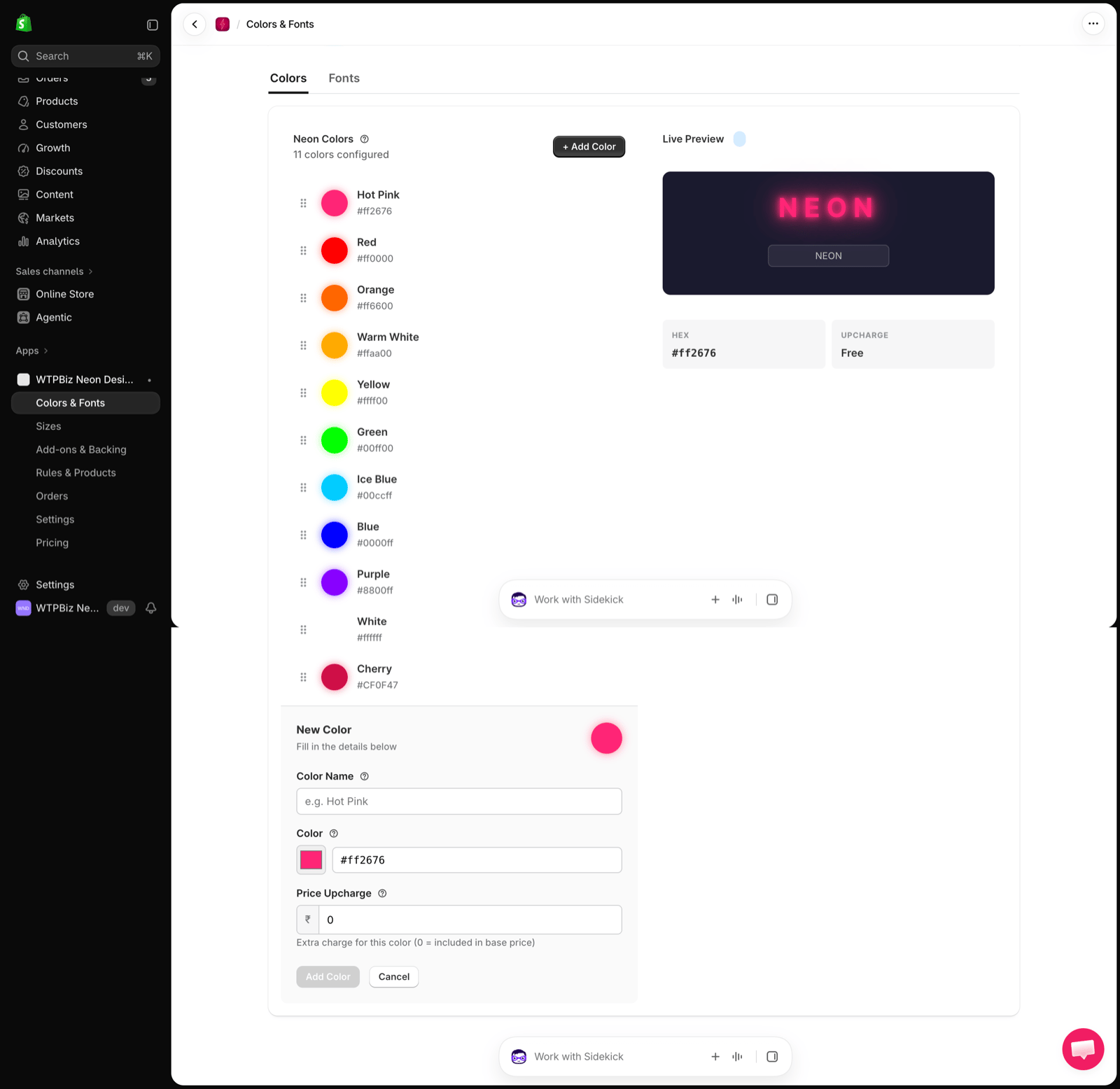 The **Neon Colors** list shows every color customers can pick, with its name and hex code. Drag the handle on the left to change the order customers see.
* **Live Preview** — shows the selected color as a glowing neon sign, with its **HEX** code and **UPCHARGE**.
### Add a Color
1. Click **+ Add Color**.
2. Enter a **Color Name** (e.g., Hot Pink).
3. Pick the **Color** or type its hex code (e.g., `#ff2676`).
4. Set a **Price Upcharge**. Use `0` to include the color in the base price.
5. Click **Add Color**.
## Fonts
Go to **Colors & Fonts > Fonts**.
The **Neon Colors** list shows every color customers can pick, with its name and hex code. Drag the handle on the left to change the order customers see.
* **Live Preview** — shows the selected color as a glowing neon sign, with its **HEX** code and **UPCHARGE**.
### Add a Color
1. Click **+ Add Color**.
2. Enter a **Color Name** (e.g., Hot Pink).
3. Pick the **Color** or type its hex code (e.g., `#ff2676`).
4. Set a **Price Upcharge**. Use `0` to include the color in the base price.
5. Click **Add Color**.
## Fonts
Go to **Colors & Fonts > Fonts**.
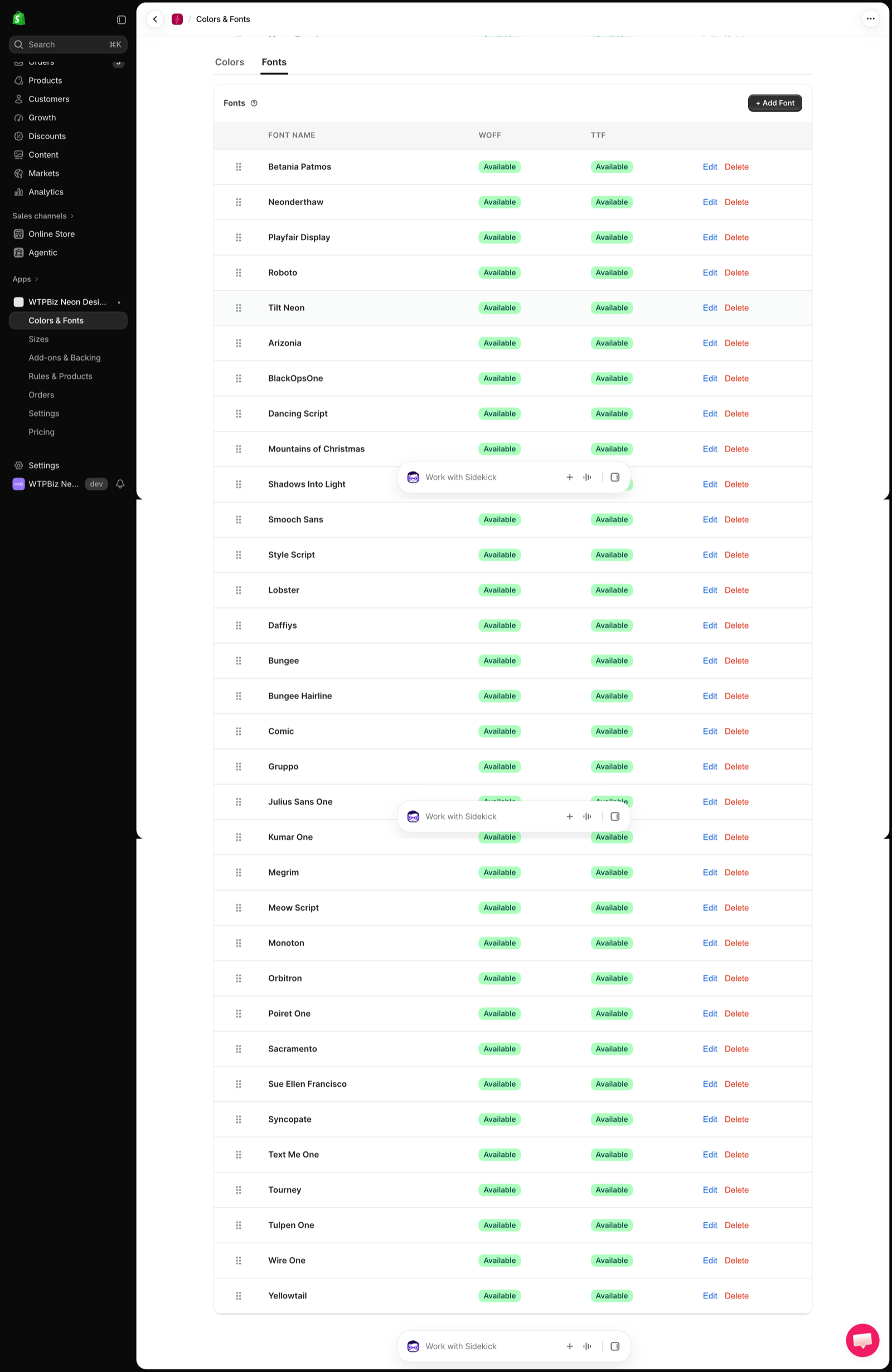 The **Fonts** table lists every font available for neon text, with **WOFF** and **TTF** file status. Drag the handle to reorder, click **Edit** to update a font, or **Delete** to remove it.
### Add a Font
1. Click **+ Add Font**.
2. Enter the font name and upload the font files (WOFF and TTF).
3. Save.
The number of custom fonts you can upload depends on your plan. See [Pricing](/neon/pricing).
Only upload fonts you are licensed to use for commercial products.
The **Fonts** table lists every font available for neon text, with **WOFF** and **TTF** file status. Drag the handle to reorder, click **Edit** to update a font, or **Delete** to remove it.
### Add a Font
1. Click **+ Add Font**.
2. Enter the font name and upload the font files (WOFF and TTF).
3. Save.
The number of custom fonts you can upload depends on your plan. See [Pricing](/neon/pricing).
Only upload fonts you are licensed to use for commercial products.