> ## Documentation Index
> Fetch the complete documentation index at: https://help.wtpbiz.com/llms.txt
> Use this file to discover all available pages before exploring further.
# Settings
> Configure color palette and typography in Fabric Lens
## Settings Overview
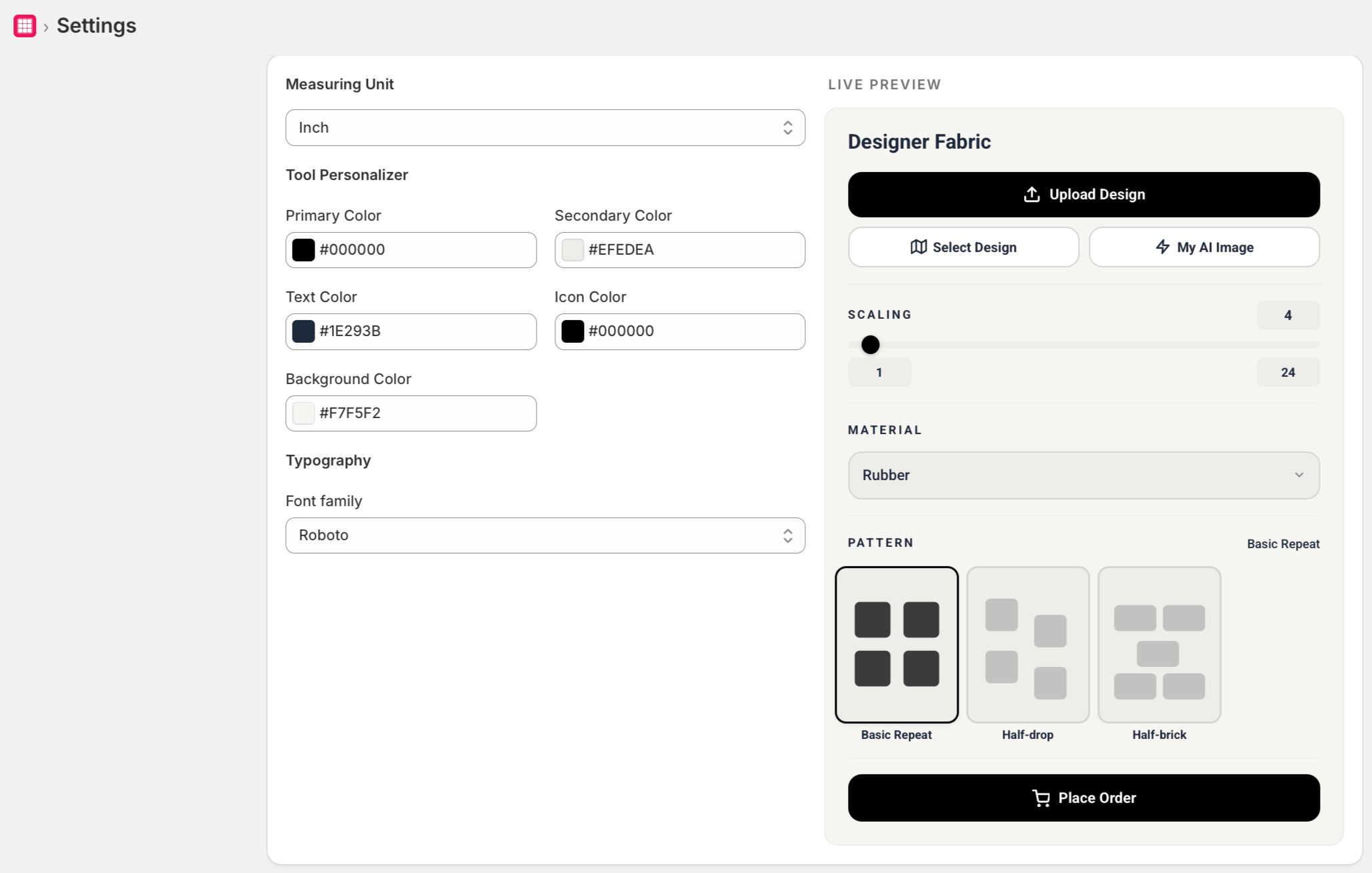
The Settings page lets you customize the color palette and typography used in the Fabric Lens pattern visualizer on your storefront.
 ## Color Palette
Define the colors customers can select when previewing fabric patterns:
1. In the **Color Palette** section, click **Add Color**.
2. Enter a color name and select or enter a hex color code.
3. Repeat to add as many colors as needed.
4. Click **Save**.
Customers will see these colors as swatches on the product page to simulate different fabric colorways.
## Typography
Customize the font displayed in the Fabric Lens widget on your storefront:
1. In the **Typography** section, choose a font from the dropdown.
2. Click **Save**.
Font choices are limited to web-safe fonts compatible with the Fabric Lens widget.
## Color Palette
Define the colors customers can select when previewing fabric patterns:
1. In the **Color Palette** section, click **Add Color**.
2. Enter a color name and select or enter a hex color code.
3. Repeat to add as many colors as needed.
4. Click **Save**.
Customers will see these colors as swatches on the product page to simulate different fabric colorways.
## Typography
Customize the font displayed in the Fabric Lens widget on your storefront:
1. In the **Typography** section, choose a font from the dropdown.
2. Click **Save**.
Font choices are limited to web-safe fonts compatible with the Fabric Lens widget.