> ## Documentation Index
> Fetch the complete documentation index at: https://help.wtpbiz.com/llms.txt
> Use this file to discover all available pages before exploring further.
# Rules
> Configure collections and pattern repeat modes in Fabric Lens
## Rules & Collections Overview
The Rules page lets you select which Shopify collection Fabric Lens applies to, and configure how fabric patterns are displayed on product images.
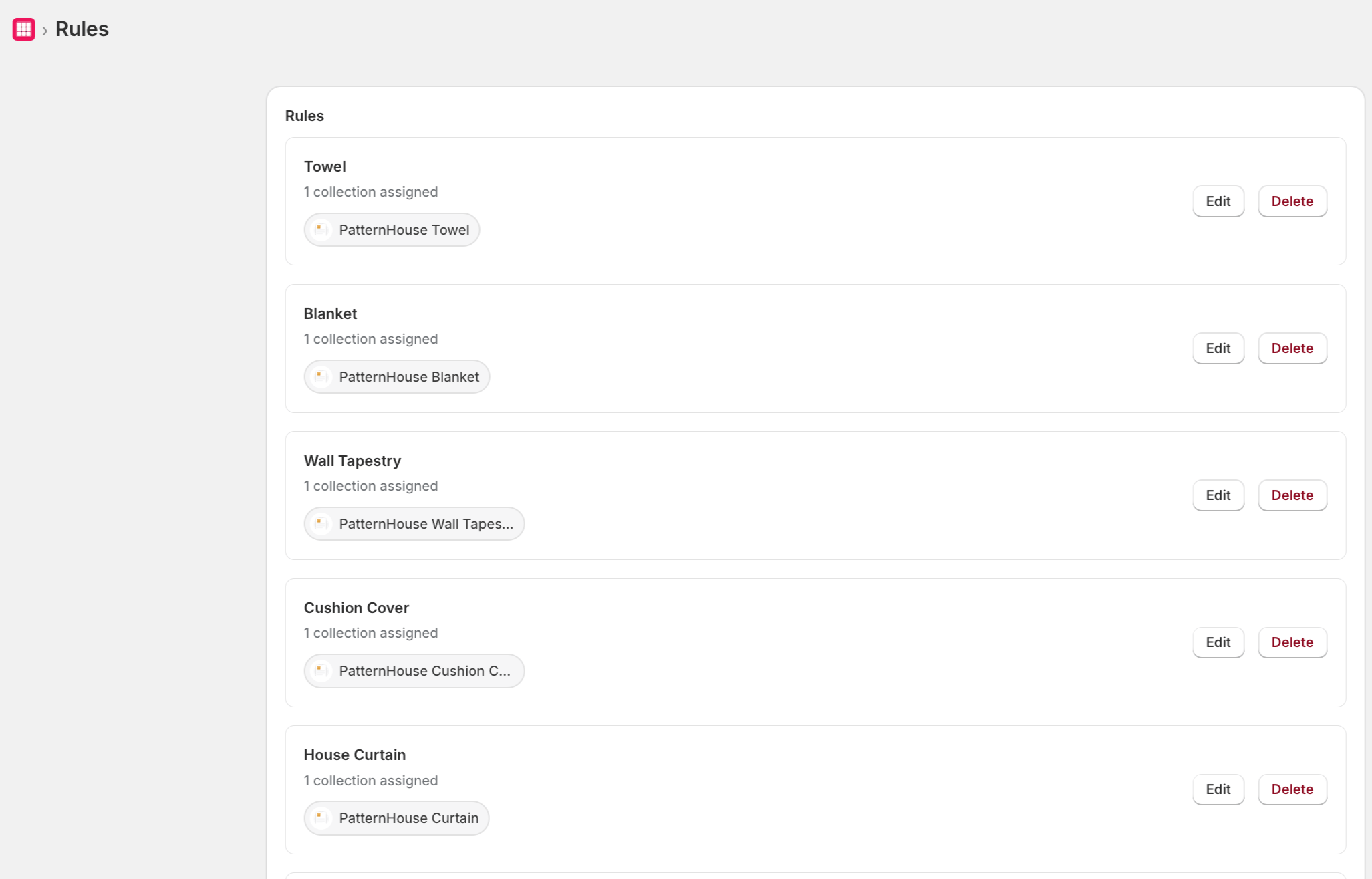 ## Select a Collection
1. On the Rules page, click **Select Collection**.
2. Choose the product collection you want the Fabric Lens pattern visualizer to apply to.
3. Click **Save**.
Only products in the selected collection will display the Fabric Lens pattern visualizer on the storefront.
## Pattern Repeat Modes
Fabric Lens supports three repeat modes for displaying fabric patterns over product images:
| Mode | Description |
| --------------------- | ----------------------------------------------------------------------------- |
| **Basic Repeat** | Tiles the pattern in a standard grid across the product image. |
| **Half Drop Repeat** | Offsets alternating columns by half a pattern height for a brick-like layout. |
| **Half Brick Repeat** | Offsets alternating rows by half a pattern width for a horizontal stagger. |
Select the repeat mode that best matches how your fabrics are naturally laid out.
## Overlay Image & Scaling
* **Overlay Image** — Upload a transparent PNG mask of your product shape. The pattern will be clipped to this shape.
* **Scale** — Adjust the pattern size relative to the product image using the scale slider.
## Select a Collection
1. On the Rules page, click **Select Collection**.
2. Choose the product collection you want the Fabric Lens pattern visualizer to apply to.
3. Click **Save**.
Only products in the selected collection will display the Fabric Lens pattern visualizer on the storefront.
## Pattern Repeat Modes
Fabric Lens supports three repeat modes for displaying fabric patterns over product images:
| Mode | Description |
| --------------------- | ----------------------------------------------------------------------------- |
| **Basic Repeat** | Tiles the pattern in a standard grid across the product image. |
| **Half Drop Repeat** | Offsets alternating columns by half a pattern height for a brick-like layout. |
| **Half Brick Repeat** | Offsets alternating rows by half a pattern width for a horizontal stagger. |
Select the repeat mode that best matches how your fabrics are naturally laid out.
## Overlay Image & Scaling
* **Overlay Image** — Upload a transparent PNG mask of your product shape. The pattern will be clipped to this shape.
* **Scale** — Adjust the pattern size relative to the product image using the scale slider.